AI Agent 助教技能培訓工作坊:課程大綱與技術支援指南
本頁是這場半日助教培訓的完整課程材料:前半部(課程資訊~課後銜接)整理自籌備文件 refs/AI-Agent-助教技能培訓工作坊-執行摘要.md 與 -執行方案.md,說明工作坊定位、培訓目標、對象規模、下午流程與操作檢核、實作範圍與原則、現場支援流程,以及資料安全與角色界線;後半部把同一套培訓精神,具體對應到本站 Module 1~3 這套原為教師設計的實作教材,逐模組列出教師常見卡點、助教應具備的先備知識,以及常見狀況快速對照表,作為「vibe coding 實作」單元的具體練習素材與技術延伸。
本場不是 AI 專家或軟體工程師養成課程,也不訓練助教自行設計教材、命題或評量。訓練重點放在「能不能跟 Codex 討論、從零把一件事講清楚並做出來」,而不是熟記某一套現成工具怎麼呼叫——助教學的是方法,不是特定工具的操作手冊。
課程資訊
| 項目 | 內容 |
|---|---|
| 時間 | 半天,13:00-17:30(12:30 開始報到;14:50-15:10 茶敘休息) |
| 地點 | 南臺科技大學 J棟 J301教室 |
| 講師 | 南臺科大 電子系 楊榮林 教授 |
| 對象 | 由教師或各單位推薦的助教;如有名額,也歡迎具備基本電腦與 AI 使用經驗的行政/辦事同仁及其他有興趣者參與。 |
本工作坊可能依報名狀況開設多個梯次,實際日期與報名連結以各梯次正式公告為準。
下午重點流程(完整版含操作檢核見「四、下午流程與操作檢核」):
| 時間 | 重點 |
|---|---|
| 13:00-13:25 | 認識 AI Agent 與助教支援角色。 |
| 13:25-14:20 | 建置本機工具與專案資料夾。 |
| 14:20-14:50 | 開啟練習專案並確認執行流程。 |
| 14:50-15:10 | 茶敘休息/未完成環境設定協助。 |
| 15:10-16:10 | vibe coding 實作:建立簡易網頁小工具。 |
| 16:10-17:00 | 測試工具、描述問題與請 AI 修正。 |
| 17:00-17:20 | 常見支援情境與問題處置。 |
| 17:20-17:30 | 回顧、提問與課程收束。 |
一、工作坊定位
本工作坊是一場半日、初階、以個人電腦實作為主的培訓,目的是培養可在第一線協助教師與行政同仁使用 AI Agent 的助教與行政人員。對象以教師或各單位推薦的助教為優先;如有名額,也歡迎具備基本電腦與 AI 使用經驗的行政/辦事同仁及其他有興趣者參與。預計約 30 人,參與者以自己的筆記型電腦獨立操作。
課程以 ChatGPT Codex 為示範工具,但重點不在學習單一平台,而是建立可轉用到其他 AI Agent 的工作方法:說清楚目標、情境、限制與完成標準;讓 AI 協助產生工具;自行找到並執行產出;測試與判讀結果;再逐步修正。
本場不是教材設計、命題或評量設計課程,也不是程式設計師養成、學科內容審查或行政決策課程。它的核心任務是培養能支援教師使用 AI Agent 與簡易 vibe coding 工具的第一線人員,降低非工程背景教師在本機安裝、檔案管理、執行、測試與基本問題排除上的負擔。助教與行政人員的任務是提供技術協助,協助處理環境安裝、專案資料夾、檔案位置、工具啟動、基本測試與問題資訊整理;教材內容、題目品質、學科正確性與行政決定,仍由教師、相關單位或具專業者判斷。
二、培訓目標
完成本場後,參與者應能在他人需要協助時,先釐清問題位置、蒐集必要資訊,再協助完成下列基本工作:
- 說明 Chatbot 與 AI Agent 的差異,知道哪些工作可請 AI 協助、哪些結果仍需人員確認。
- 安裝、開啟與初步驗證 VS Code、Python、Node.js 等本機工具,辨識常見的登入、權限、網路與版本問題。
- 建立清楚的專案資料夾,分辨來源資料、程式檔、產出檔與執行位置,並能以完整路徑說明問題所在。
- 使用自然語言進行小範圍 vibe coding,產生一個可在本機開啟的靜態 HTML 小工具。
- 以使用者情境測試工具,記錄「預期結果、實際結果、操作步驟、錯誤訊息或畫面」,向 AI Agent 提出可驗證的修正需求。
- 在角色界線與資料安全原則下,協助教師或同仁跨過技術門檻,讓其能專注於教學與專業工作。
三、對象、規模與執行條件
| 項目 | 執行內容 |
|---|---|
| 優先對象 | 由教師或各單位推薦的助教;如有名額,亦歡迎具基本電腦與 AI 使用經驗的行政/辦事同仁及其他有興趣者。 |
| 建議規模 | 約 30 人。每位參與者使用自己的帳號、筆記型電腦與本機資料夾獨立操作,不安排分組共同產出。 |
| 上課時段 | 12:30 報到;13:00-17:30 上課;14:50-15:10 茶敘休息。 |
| 參與者設備 | 筆記型電腦、電源供應器與可連線網路;電腦需具軟體安裝或更新權限。建議攜帶日後實際支援工作會使用的設備。 |
| 主辦單位準備 | 提供可公開使用的練習專案、練習資料、安裝連結與基本操作指引;現場準備網路、投影與至少一個可協助安裝/登入問題的支援窗口。 |
四、下午流程與操作檢核
| 時間 | 單元與帶領重點 | 參與者操作 | 單元檢核點 |
|---|---|---|---|
| 12:30-13:00 | 報到、設備與帳號確認:確認網路、帳號登入、軟體安裝權限與電源。 | 開啟電腦、連線網路、登入必要服務;將問題先依帳號、網路、權限或設備分類。 | 每人知道自己使用的帳號與本機資料夾位置;未完成者列入休息時間協助清單。 |
| 13:00-13:25 | 認識 AI Agent 與助教支援角色:說明 Chatbot/AI Agent、可做與不可直接交給 AI 的工作,以及技術支援的角色界線。 | 以一個日常支援情境,練習把模糊需求補成「目標、情境、限制、完成標準」。 | 能說出至少一項可協助的技術工作與一項須由教師或專業人員確認的工作。 |
| 13:25-14:20 | 建置本機工具與專案資料夾:介紹 VS Code、Python、Node.js、終端機與資料夾的用途,依指引安裝或驗證。 | 建立本次專案資料夾;開啟 VS Code;在終端機執行提供的版本或啟動檢查指令。 | 能在自己的電腦開啟專案資料夾,並截取或記下可供判讀的檢查結果。 |
| 14:20-14:50 | 開啟練習專案並確認執行流程:以主辦單位練習專案示範從檔案到結果的完整路徑。 | 找到來源檔、輸出檔與啟動位置;依步驟開啟網頁或程式,比對畫面是否與預期一致。 | 能指出專案根目錄、主要檔案與執行後結果,且能描述下一步該在哪裡操作。 |
| 14:50-15:10 | 茶敘休息/未完成環境設定協助。 | 休息;尚未完成環境建置者依問題清單接受協助。 | 支援人員優先處理會阻斷下午實作的登入、安裝、權限與網路問題。 |
| 15:10-16:10 | vibe coding 實作:建立簡易網頁小工具,示範如何提出小而可驗證的需求。 | 以主辦單位題目或自己的非敏感情境,建立單一靜態 HTML 小工具。 | 產出至少一個可開啟的 HTML 頁面;能找到其檔案位置並說明工具的用途與限制。 |
| 16:10-17:00 | 測試工具、描述問題與請 AI 修正:示範將「不能用」轉成可重現、可修正的問題描述。 | 測試按鈕、輸入、文字與結果;記錄操作步驟、預期/實際結果與錯誤訊息;請 AI Agent 協助修正後重新測試。 | 完成至少一輪「測試 → 回報 → 修正 → 再測試」,並保留修正前後的差異或紀錄。 |
| 17:00-17:20 | 常見支援情境與問題處置:回顧未來常見的協助請求與升級處理原則。 | 依情境判斷自己可先協助的事項、須交給教師/資訊單位/專業人員的事項,以及需保留的問題資訊。 | 能依「定位、蒐集、分類、最小修正、重新驗證、適當升級」順序處理問題。 |
| 17:20-17:30 | 回顧、提問與課程收束。 | 回顧個人的完成項目與仍需協助的問題;提出最後提問。 | 每人帶走可供日後支援使用的練習專案、問題紀錄方式與下一步。 |
五、實作範圍與操作原則
小工具的最小範圍
- 僅使用 HTML、CSS 與必要的 JavaScript,建立單一、可檢查的簡易網頁工具。
- 工具在本機資料夾開啟與測試;不處理帳號系統、資料庫、即時同步、正式部署或正式評量系統。
- 評量重點是參與者能否找到、執行、測試與修正工具,而非工具主題、介面美觀、教材品質或程式複雜度。
建議操作順序
- 建立專案資料夾,清楚命名並區分來源資料、程式檔與輸出成果。
- 向 AI Agent 說明工具的使用者、目的、功能範圍、限制與完成標準。
- 確認 AI Agent 實際建立或修改的檔案,避免只停留在對話視窗中。
- 依需要在本機開啟檔案或啟動服務,以明確情境測試功能。
- 記錄預期結果、實際結果、重現步驟、相關檔案路徑與錯誤訊息;一次提出一項可驗證的修正需求。
- 修正後重新執行同一情境,確認問題是否已解決;若仍未解決,再補足資訊或交由合適人員處理。
六、與教材原始設計對象的差異
本工作坊「vibe coding 實作」單元使用的 Module 1~3,原本是為非工程背景的大學教師設計的實作教材(把教材轉成練習工具)。助教接觸的是同一套教材,但學習焦點不同——下表整理兩種使用情境的差異:
| 面向 | Module 1~3 原始設計情境(教師) | 本次助教訓練 |
|---|---|---|
| 對象 | 非工程背景大學教師,想把教材做成練習工具 | 由教師或單位推薦的助教,具基本電腦與 AI 使用經驗 |
| 目標 | 產出一份可用的題組與自主練習小工具 | 具備排除環境、操作與常見錯誤的支援能力,不以產出教材為目標 |
| 涵蓋範圍 | 完整跑過從安裝到成品的所有階段 | 聚焦 Module 1~3,且每個模組都以「理解原理、能協助從零重建」為訓練重點 |
| 深度 | 每個模組要求做出完整、可驗收的成果 | 每個模組要求認得住「教師在這裡最容易卡在哪」與「怎麼用最少步驟排除」 |
| 評量重點 | 題目品質、答案正確性、網頁工具是否堪用 | 能否快速定位問題、蒐集必要資訊、提出可驗證的最小修正 |
| 工具操作深度 | 只需要會在 Codex 對話視窗打字下指令 | 除了會下指令,還需要能在終端機直接執行、檢查 Codex 寫出來的腳本與中間產出,驗證結果是否正確,不只是透過 Codex 對話 |
| 資料安全 | 不使用學生個資/完整成績,以教師自身教材為主 | 同樣原則,額外留意:協助排錯過程中不代為判斷教材、題目、評量品質等專業內容 |
七、Module 1 助教學習重點:Windows/工具鏈建置
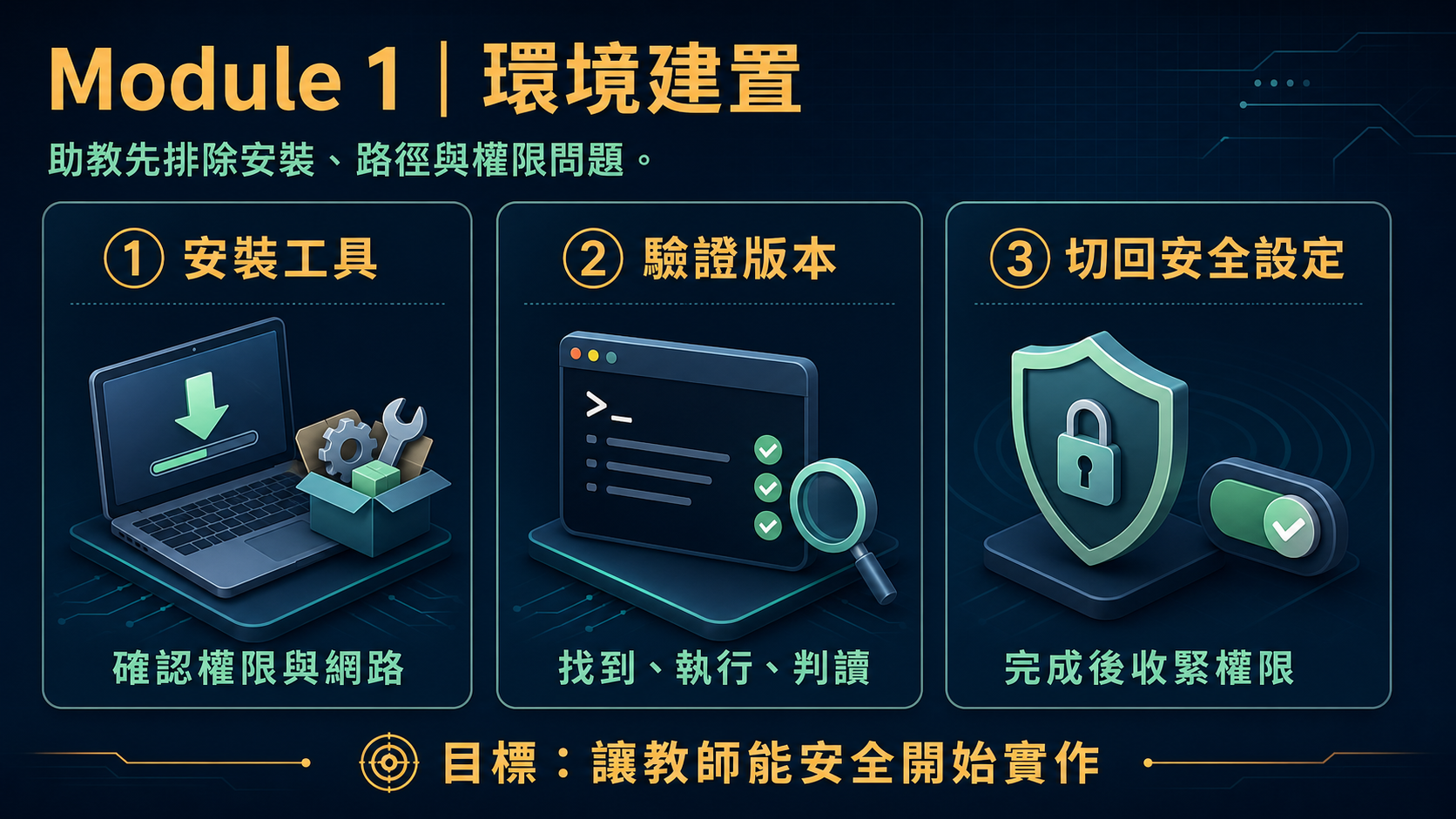
教師版 Module 1 讓教師在 Windows 11 筆電上建置 Vibe Coding 與 AI Agent 工作環境,提供三種安裝方式(手動 winget、AI Agent Prompt 法、module1-setup-windows.bat 一鍵安裝)。
教師在這裡最容易卡住的地方
- 學校配發電腦沒有系統管理員權限 → winget/UAC 安裝失敗或被擋下。
- 執行
module1-setup-windows.bat後顯示winget not found。 - 批次檔執行完,指令仍「找不到」→ 沒有關閉重開終端機,PATH 尚未生效。
- VS Code 剛裝好那一次執行,5 個擴充套件被跳過(因為
code命令當時還不在 PATH 上)。 - 用「安裝方式二:AI Agent Prompt」法時,忘記把 完整存取權(Full access)切回先要求核准(Ask for approval)。
- ChatGPT 帳號沒有 Codex 存取權,或功能因方案/工作區/推出狀況而不同。
gh auth login卡在瀏覽器登入或一次性代碼輸入。- 磁碟空間不足:node_modules 與 Python 套件容易超過原本預估的 10GB。
助教應具備的先備知識與技術能力
- 三種安裝方式的差異與何時該切換:手動安裝是學校 IT 限制 winget 時的備援;AI Prompt 法需要暫時開 Full access、事後務必切回;
.bat檔可重複執行、已安裝項目會自動略過。 - 7 個版本檢查指令,能一次帶著教師從頭跑一遍:
code --version、git --version、node --version、npm --version、uv --version、gh --version、codex --version。 - Windows 檔案總管基本操作:資料夾路徑怎麼看、顯示副檔名、下載的
.bat/.tar檔案怎麼解壓縮、「下載」資料夾位置在哪。 - 基本終端機操作:開啟 PowerShell/CMD、
cd切換目錄、dir看檔案清單、以系統管理員身分開啟終端機。 - 知道
winget install --id ... --source winget --exact這類指令在做什麼、為什麼可能失敗(權限、網路、來源設定)。
常見狀況快速對照表
| 狀況 | 代表什麼 | 助教可以怎麼做 |
|---|---|---|
winget not found | App Installer 未安裝或版本過舊 | 引導開啟 Microsoft Store 安裝/更新 App Installer,完成後重新執行批次檔 |
| 批次檔顯示某工具「已處理」,但版本檢查指令仍說找不到 | PATH 還沒套用到目前這個終端機視窗 | 關閉重開 PowerShell/CMD,再跑一次版本檢查指令 |
| VS Code 裝好了,但 5 個擴充套件沒被安裝 | 同一次執行中 VS Code 才剛裝好,code 命令還不在 PATH 上,批次檔跳過了擴充套件那一步 | 重開終端機後,再執行一次同一支批次檔(可重複執行,已裝項目會自動略過) |
| 學校電腦跳出「你沒有權限安裝此應用程式」 | 帳號沒有系統管理員權限,winget 需要系統管理員/UAC 核准 | 改用「安裝方式一:手動安裝」逐項下載官方安裝檔;必要時請學校 IT 協助,或改用個人電腦 |
| 用 Full access 裝完工具後忘記切回 | Agent 之後執行終端機指令不會再逐步詢問核准 | 提醒教師回到工作設定,改回「先要求核准(Ask for approval)」 |
codex --version 或登入時出現帳號相關錯誤 | 尚未用有 Codex 存取權的 ChatGPT 帳號登入,或該帳號方案/工作區未開通 Codex | 請教師確認登入帳號、方案與工作區狀態,必要時聯繫負責窗口 |
gh auth login 卡住沒反應 | 瀏覽器分頁沒跳出,或一次性代碼視窗被忽略 | 確認瀏覽器有跳出新分頁、代碼是否正確輸入;必要時重新執行指令 |
八、Module 2 助教學習重點:從零打造考古題下載/切題/清理流程
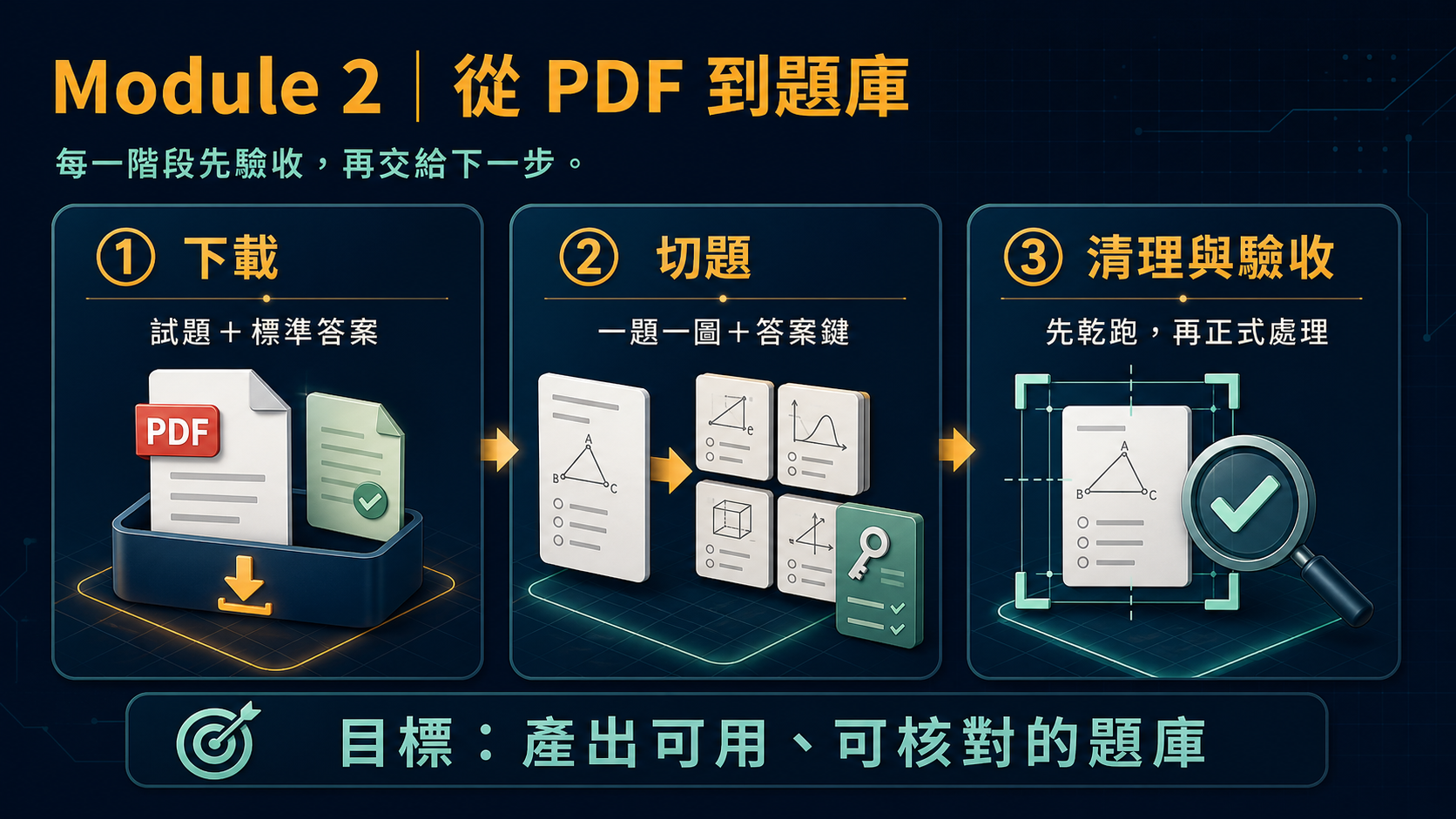
教師版 Module 2 的目標,是把一份 PDF 考古題轉成「一題一張乾淨圖片 + 標準答案 JSON」的問題集資料夾,整個流程分成下載、切題、清理三個階段,前一階段的輸出就是下一階段的輸入。助教訓練的重點不是背下某個現成工具怎麼呼叫,而是理解這三個階段各自在做什麼、為什麼需要驗收,並具備跟 Codex 討論、從零設計出等效處理流程的能力——這樣不管教師手上換成哪一份考卷、遇到原本沒處理過的版面,助教都能協助把問題從頭想清楚,而不是卡在「這個做法不支援」就沒辦法往下走。
| 階段 | 在做什麼 | 輸入 | 輸出 |
|---|---|---|---|
| ① 下載 | 抓試題+標準答案 PDF | 學年度、群類 | raw/<year>/*.pdf |
| ② 切題 | 把 PDF 切成一題一張圖,配對答案 | ①的 PDF | repo/<name>/*.png + keys.json |
| ③ 清理 | 裁掉多餘空白、塗掉題號 | ②的 png | 原地覆寫、變乾淨的 png |
教師在這裡最容易卡住的地方
- Prompt 只講「幫我把這份 PDF 處理成一題一張圖」,沒有講清楚輸出檔名規則、資料夾位置與答案 JSON 的格式,Codex 產出的結構跟教師預期對不起來。
- 下載試題頁面時抓錯群類或科目,卻沒有先肉眼核對就往下一步做。
- 切題時遇到共同科目(數學/國文/英文)這類版面跟原本設計不同的考卷,原本針對某一類考卷調校的處理邏輯(檔名規則、題數假設)套用失敗,教師不知道該怎麼調整。
- 清理階段沒有先「乾跑」確認每張圖只抓到 1 個題號區塊,就直接批次塗白存檔——清理是原地覆寫,沒有自動備份,一旦判斷錯誤就很難救回來。
- 題數、檔名規則這類假設容易被寫死在流程裡,換一份考卷格式不同就整組跑不動,教師不知道要跟 Codex 明確講清楚新的規則。
助教應具備的先備知識與技術能力
- 理解三個階段各自的輸入輸出慣例(見上方流程總覽表),能一眼看出教師目前卡在哪個階段。
- 知道怎麼跟 Codex 討論,把「下載試題與答案 PDF」這件事拆成明確的目標、情境、限制、完成標準,而不是一句話丟過去就期待它自己想清楚每個細節(例如:要保留原始檔名、要能肉眼核對群類科目是否正確)。
- 理解切題階段的核心限制在哪裡(例如:固定的頁面版面假設、題號如何被辨識、答案怎麼跟題目配對),能協助教師判斷「原本的做法為什麼在這份新考卷上失敗」,並提出具體、可驗證的修正需求,而不是整段重做。
- 知道清理階段一定要先「乾跑」(先印出偵測結果、不動任何像素),確認每張圖都剛好抓到預期數量的區塊後才正式執行;也知道清理是原地覆寫、沒有備份,唯一救援方式是回頭重新切那一題的圖,而不是在清理階段硬套規則修。
- 會用檔案總管或終端機比對圖片張數與
keys.json筆數是否一致,這是每個階段都適用的驗收方法。
常見狀況快速對照表
| 狀況 | 代表什麼 | 助教可以怎麼做 |
|---|---|---|
| 下載到的 PDF 打開一看,群類或科目跟預期不同 | 下載時比對到的群類、科目名稱有誤 | 請教師/Codex 開啟 PDF 肉眼核對,確認無誤才繼續下一步 |
| 某一科目的考卷版面跟原本的處理邏輯對不上(例如共同科目 vs 專業科目) | 原本的處理假設(題數、版面座標)是針對特定範本設計的,換一種版面就可能失敗或誤判 | 協助教師具體描述新版面跟原本的差異,請 Codex 針對這份新考卷重新測量、調整處理邏輯,而不是硬套舊規則 |
| 切完題後檔名或分類標籤跟實際科目對不上 | 輸出的命名規則是先前針對某一類考卷設計的,沒有隨科目調整 | 請教師明確講出這份考卷該用的命名規則,請 Codex 改檔名+同步改 keys.json 的 key,再進清理階段 |
| 清理乾跑時某張圖出現 0 個或 ≥2 個偵測區塊 | 版面跟預期範本不同,或門檻誤判 | 提醒先停下來人工檢查那張圖,不要直接跳過或硬套用 |
| 清理完後某張圖底部還留一整行不相關的文字 | 這是切題邊界的殘影,不是單純的空白或雜訊,清理階段救不了 | 回頭請 Codex 重新切那一題的圖,不要在清理階段加規則硬修 |
圖片張數跟 keys.json 筆數對不起來 | 切題或答案解析有缺漏 | 請教師/Codex 核對總題數,找出缺哪一題或哪一筆答案 |
九、Module 3 助教學習重點:從零打造測驗網頁
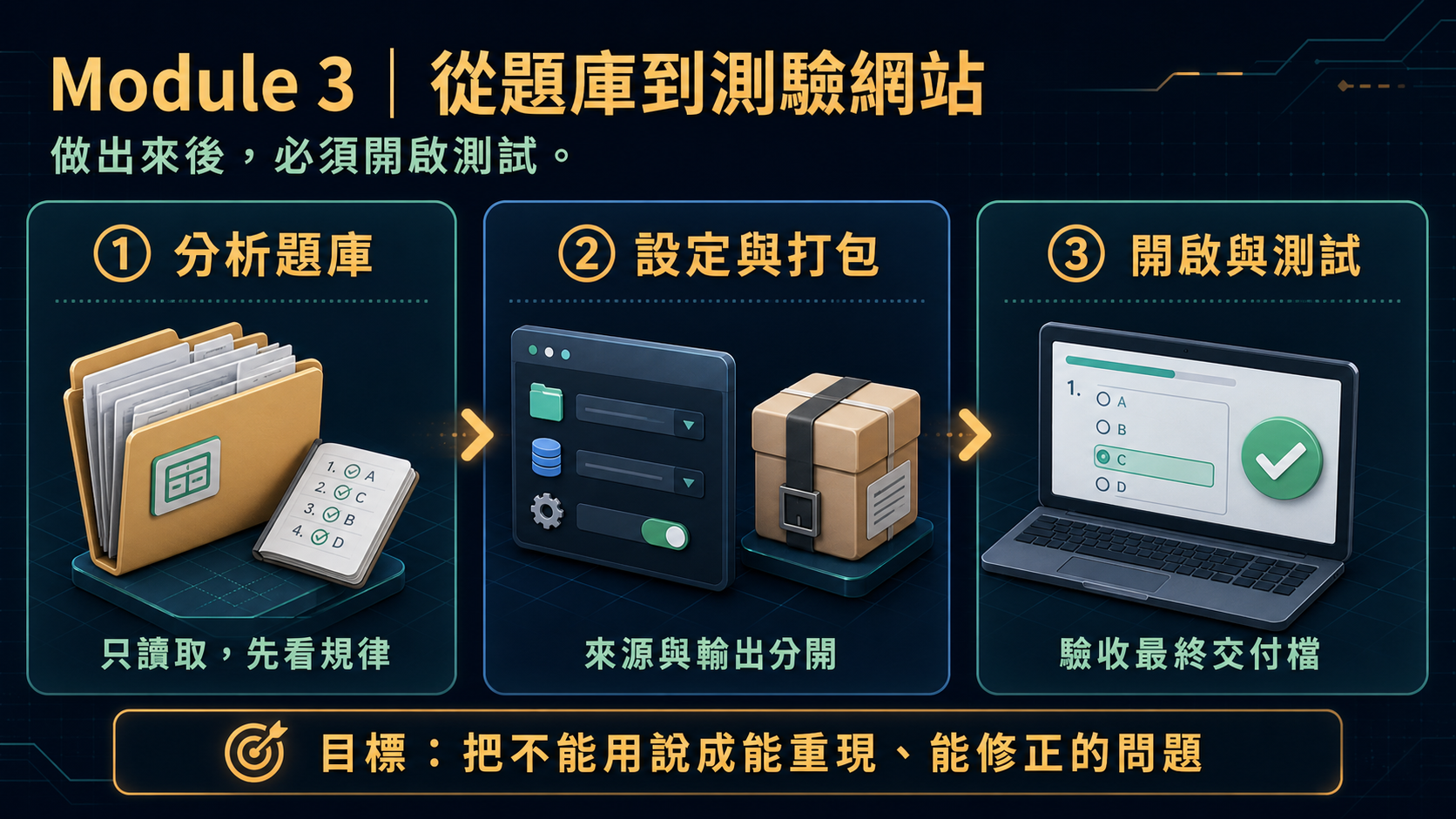
教師版 Module 3 從「一個問題集資料夾」出發,用 7 個步驟跟 Codex 討論、逐步設計出一套測驗網頁產生工具。這是整個教師工作坊最吃 prompt 表達能力的一段,也是助教最需要協助教師「把話講清楚」的地方;它同時也是助教工作坊的核心示範:整套訓練希望助教學到的,正是這種「從零跟 AI Agent 討論、設計、做出來」的方法,而不是操作某個已經包好的現成工具。
7 步驟一覽(助教應熟悉每一步最容易漏掉的明確要求)
| 步驟 | 交付物 | 最容易漏掉的明確要求 |
|---|---|---|
① 決定 app/ 放哪 | 設計決策 | app/ 必須是 repo/ 的同層(sibling),不能塞進問題集資料夾裡面 |
| ② 分析問題集資料夾 | analyze_folder.py | 只能讀取、不能修改任何檔案;只用標準函式庫;抓不出檔名規律就別硬湊 |
③ 設計 config.json | 設定檔結構 | 用 assessments 陣列(不是單一物件),才能之後疊加而不用重新設計 |
④ 打造 quiz.html | 學生作答樣板 | 最終交付版本不能用 fetch()(瀏覽器會擋 file:// 下的請求);開發階段可以先用假資料 + fetch() 測 |
⑤ 寫 build_bundle.py | 打包腳本 | 要支援 --only <examLabel> 增量重建;圖片缺檔只警告、不中斷;印出 Built N/M 總結 |
| ⑥ 驗收 | — | 不要只信任「Codex 說做完了」,要實際雙擊打開測試 |
| ⑦ 教師端彙整頁 | report-aggregator.html | 純前端、不上傳任何資料,能拖放多份 CSV 合併統計 |
教師在這裡最容易卡住的地方
- Prompt 只講「幫我做一個測驗網頁」,沒講清楚上表的關鍵限制,導致 Codex 產出方向跑掉或難以驗收。
- 誤把輸出資料夾塞進題目資料夾裡(沒有維持
app/與repo/同層的規則)。 - 誤雙擊
app/quiz.html(可編輯原始碼版本,還在用fetch())而不是dist/<examLabel>_quiz.html(最終交付版本),導致畫面空白、按鈕沒反應。 config.json裡漏寫"repoDir": "."(省略等同預設值"repo",會找不到圖片資料夾)。- 改了
config.json之後沒有重跑build_bundle.py,以為dist/裡的檔案會自動更新。 - 新加的
examLabel跟既有的撞名,互相覆蓋。 Built N/M出現N<M,代表有測驗打包失敗但教師沒注意到。
助教應具備的先備知識與技術能力
- 檔案位置慣例:
app/是repo/的 sibling、dist/<examLabel>_quiz.html才是最終雙擊即用檔案、config.json是可疊加的assessments陣列。 - 能用終端機自行驗證:
# 測試「可編輯原始碼」版本要先開本機伺服器(dist/ 版本不需要)
cd module3/app && python3 -m http.server

# 只重建剛加的那一筆測驗,不用整批重打包
python3 build_bundle.py --only <examLabel>- 看懂「
Built N/M assessments」這行輸出:N<M時要往上找警告訊息,通常是路徑欄位寫錯。
常見狀況快速對照表
| 狀況 | 代表什麼 | 助教可以怎麼做 |
|---|---|---|
分析腳本找不到 keys.json,或找到不只一個 .json 檔 | 資料夾裡的 JSON 檔不只一個、或完全沒有 | 請 Codex 支援明確指定檔名的參數(如 --keys-file),再重跑 |
repoDir 分析不出來,或找不到圖片資料夾 | 圖片位置偵測邏輯不夠周全 | 確認圖片實際路徑,請 Codex 支援明確指定資料夾的參數(如 --repo-dir),再重跑 |
filenamePattern 抓出來的分組看起來像雜訊 | 檔名剛好符合推論規則,但差異不代表有意義的分類 | 不要硬寫進 config.json,直接省略,確認樣板有「退回逐題顯示原始檔名」的備案 |
打包印出「Built N/M assessments」,N < M | 至少一筆測驗打包失敗 | 往上找對應的警告訊息,通常是路徑欄位寫錯 |
新加的 examLabel 跟既有某一筆撞名 | examLabel 同時決定輸出檔名,撞名會互相覆蓋 | 加新的一筆之前,先看一眼 config.json 既有陣列用過哪些名字 |
直接雙擊 app/quiz.html,畫面空白或按鈕沒反應 | 那是「可編輯原始碼」版本,還在用 fetch(),瀏覽器擋掉 file:// 下的請求 | 提醒改開 dist/<examLabel>_quiz.html;真的要測原始碼版本才需要開本機伺服器 |
改了 config.json,dist/ 裡的檔案沒變 | dist/*.html 是打包當下的快照,不會即時更新 | 提醒重跑一次打包程式(可只加 --only 那一筆) |
十、各模組技術能力需求總表
| 能力類別 | 具體內容 | 主要對應模組 |
|---|---|---|
| Windows 檔案總管與路徑 | 資料夾結構、絕對/相對路徑、副檔名顯示、壓縮解壓縮(.tar/.zip)、下載資料夾管理 | Module 1(工具安裝)、Module 2/3(範例資料與教材壓縮檔) |
| 軟體安裝與權限排除 | winget 基本概念、系統管理員權限、UAC、PATH 概念 | Module 1 |
| PowerShell/CMD 基本操作 | 開啟終端機、cd 切換目錄、dir 查看檔案、執行指令、讀懂常見錯誤訊息 | Module 1(驗證安裝)、Module 2/3(直接執行、檢查 Codex 寫出來的腳本與中間產出) |
| AI Agent 工作流程理解 | Chat/Work/Codex 的差異、Prompt 與 Task 的差異、Ask for approval 與 Full access 的差異、常見失敗原因(prompt 不明確/路徑錯誤/檔案不存在/權限不足/工具未安裝/執行中斷) | 全模組 |
| 協助教師寫 prompt、從零設計工具的能力 | 目標/情境/限制/完成標準四要素檢查、拆解過大任務、協助把「這個做法為什麼失敗」講清楚並提出具體修正需求 | Module 2、Module 3(尤其明顯) |
| 成果檔案管理 | 找到 AI Agent 產出的檔案位置、下載/搬移/命名、辨識副檔名(.html/.json/.png/.pdf/.docx/.xlsx)、協助開啟與初步檢查 | Module 1(四項驗證任務)、Module 2(raw//repo/)、Module 3(app//dist//config.json) |
十一、常見問題與排除指南
下表是跨模組通用的 Windows/命令列/AI Agent 錯誤訊息判讀,各模組專屬狀況請見上方對應章節的「常見狀況快速對照表」。
| 錯誤訊息/現象 | 代表什麼 | 助教怎麼處理 |
|---|---|---|
'code'/'git'/'node' is not recognized... | 該指令不在 PATH 裡,通常是還沒重開終端機,或安裝失敗 | 關閉重開終端機再試一次;仍失敗就逐一跑對應的版本檢查指令排查 |
| Access is denied/存取被拒絕 | 權限不足,可能需要系統管理員身分執行 | 改用系統管理員身分開啟 PowerShell,或改走手動安裝 |
| 瀏覽器打開下載頁面顯示 403/無法連線 | 網路限制或防火牆擋下特定網站 | 確認網路連線、換一個網路環境,或請教師改用可連線的裝置 |
| 雙擊 HTML 檔案畫面空白、按鈕沒反應 | 很可能開到「可編輯原始碼版本」而非打包好的 dist/ 版本,該版本仍在用 fetch() 但瀏覽器擋掉了 file:// 下的請求 | 確認開的是 dist/<examLabel>_quiz.html;真的要測原始碼版本才需要開本機伺服器 python3 -m http.server |
| Codex 說「找不到檔案/資料夾」 | 路徑寫錯,或教師目前所在的工作資料夾跟指令講的路徑對不起來 | 請教師在對話裡明確講出完整或正確的相對路徑,必要時請 Codex 先列出目前資料夾內容確認 |
| Codex 產出的東西跟預期差很多,或像是重新發明了另一套做法 | Prompt 沒有把目標、情境、限制、完成標準講清楚,只給了籠統的一句話 | 提醒教師用四要素重新表達需求,把關鍵限制(例如檔名規則、資料夾位置、輸出格式)具體講出來,而不是留給 Codex 自己猜 |
| 任務執行到一半中斷、或很久沒有回應 | 網路不穩,或任務範圍太大導致執行過久 | 確認網路狀態;必要時協助把任務拆成更小的步驟重新請 Codex 做 |
十二、現場支援與問題處置流程
遇到問題時,助教或行政人員可依下列順序處理,避免在未釐清問題前反覆嘗試:
- 定位:確認使用者、電腦、帳號、專案資料夾,以及目前操作到哪個模組、哪一步。
- 蒐集:記下完整或相對檔案路徑、使用的指令或 prompt、螢幕畫面、錯誤訊息與已嘗試的處理方式。
- 分類:判斷問題較可能屬於登入/網路、安裝/權限、檔案路徑、prompt 表達不清,或工具功能與結果。
- 最小修正:只改變一個可回復的項目,例如重新開啟正確資料夾、修正一個檔名或路徑、依指引重新執行一項指令,之後立即測試。
- 重新驗證:使用原本會失敗的操作重做一次,確認問題是否真的排除,而非僅看見畫面暫時改變。
- 適當升級:權限、校園網路、帳號、資安、系統設定或專業內容問題,保留紀錄後交由資訊單位、教師、行政主管或具專業者處理;學科內容、題目品質等專業判斷一律交回教師。
協助教師改善模糊 prompt:四要素檢查法
教師常見的模糊 prompt 像是「幫我做一個測驗網頁」。助教可以用「目標、情境、限制、完成標準」四個要素引導教師補完:
| 要素 | 檢查問題 | 示範補完 |
|---|---|---|
| 目標 | 最終想要什麼?誰會用? | 「做出一個學生自己打開作答、老師事後能收成績的網頁」 |
| 情境 | 現有素材、資料夾位置是什麼? | 「我手上有 module3/repo/114 這個問題集資料夾(圖片 + keys.json)」 |
| 限制 | 有什麼技術限制不能違反? | 「最終檔案要能雙擊開啟,不能架伺服器、不能用 fetch()」 |
| 完成標準 | 怎麼知道做完了、做對了? | 「我要能實際打開、輸入姓名、作答、送出看到分數才算完成」 |
巡場時機建議
對照「四、下午流程與操作檢核」的時段,助教可依下列時段調整巡場焦點:
| 課程時段 | 對應階段 | 助教巡場重點 |
|---|---|---|
| 13:25–14:20 建置本機工具與專案資料夾 | 對應 Module 1 | 巡視是否有人卡在 winget、系統管理員權限或 PATH 問題 |
| 14:20–14:50 開啟練習專案並確認執行流程 | 熟悉 Module 1~3 教材的資料夾結構 | 確認每個人找得到專案根目錄、主要檔案與執行位置 |
| 15:10–16:10 vibe coding 實作 | 可取材自 Module 2/3 | 巡視 prompt 是否講清楚規則、app/ 位置、dist/ 與原始碼版本是否混淆 |
| 16:10–17:00 測試工具、描述問題與請 AI 修正 | 驗收 | 確認大家測的是最終交付版本,並完整走過一輪「測試 → 回報 → 修正 → 再測試」 |
十三、TA Checklist
以下清單可直接列印或勾選使用。
工作坊前(設備/帳號)
- 筆電已充電,攜帶電源線
- 已確認可連線網路
- ChatGPT 帳號已登入,確認具備 Codex 存取權限
- GitHub 帳號已可用(若當次流程需要)
- 已下載/解壓縮好本次課程用的範例資料與
module1-setup-windows.bat - 已在自己電腦上完整跑過一次 Module 1~3(不是只讀過教學文件)
Module 1 進行中
- 巡視是否有人卡在
winget not found或系統管理員權限問題 - 提醒批次檔執行完要重開終端機
- 確認每個人的 7 項版本檢查指令都能顯示版本號
- 確認 ChatGPT/Codex 帳號登入與存取權限正常
- 提醒 Full access 用完要切回 Ask for approval
Module 2 進行中
- 巡視 prompt 是否有把下載、切題、清理各階段的規則講清楚(檔名、資料夾、題數等)
- 留意共同科目(數學等)遇到跟原本版面不同時,是否有協助重新調整規則
- 提醒清理階段一定要先乾跑,不要跳過
- 巡視圖片張數與
keys.json筆數是否一致
Module 3 進行中
- 確認
app/資料夾放在repo/的同層而非裡面 - 巡視是否有人雙擊到
app/quiz.html而非dist/裡的檔案 - 留意新加的
examLabel是否與既有的撞名 - 提醒改了
config.json要重新執行打包程式 - 確認終端機印出的
Built N/M裡N是否等於M
工作坊後收尾
- 確認每位教師都拿到最終
dist/成品與教師端彙整頁 - 協助整理尚未解決的問題,記錄下來以便後續交接(資訊單位/講師)
- 收拾/歸還設備,確認沒有留下教師的教材或其他資料在助教自己的裝置上
十四、資料安全、倫理與角色界線
- 練習僅使用主辦單位提供、可公開使用或已去識別化的資料與專案。
- 不將學生個資、成績、未公開教材、未公開試題、帳密、內部文件或其他敏感資料輸入外部 AI 服務。
- Module 2 的考古題等有版權疑慮的內容,提醒教師在交付雙擊即用 HTML 前,確認自己有無合法散布這些內容的權利。
- AI 的文字、程式與建議均為草稿或輔助結果;是否可用、結果是否正確,須由人員實際測試與確認;助教不代為判斷教材、題目、評量品質等專業內容。
- 涉及教學設計、學科內容、題目品質、正式評量、學生權益、行政判斷或資料處理的決策,不由本場助教/行政人員單獨作成。
- 如需延伸至 Office、網頁服務、郵件或行事曆工具,應先確認資料權限、單位規範與負責窗口,再安排後續支援。
十五、課後銜接與預期價值
課後可保留本次的練習專案、問題紀錄格式與安裝指引,作為日後支援教師、實驗室或教學助理的起點。當教師提出需求時,受訓者不必承擔內容決策,而能協助確認設備與環境、定位檔案、啟動工具、完成基本測試,以及把尚未排除的問題整理成可交接的資訊。
透過這項培訓,可為未來工作坊建立助教人才,也可讓參與教師工作坊的教師先替實驗室或教學助理完成前置技術訓練。目標是讓教師能專注於教學與專業工作,而由具備共同技術基礎的助教或行政人員協助處理環境、檔案、執行與初步測試問題。
本場的預期價值,是建立一批具有共同技術語言與基本處置方法的支援人力,降低非工程背景教師使用 AI Agent 時的起步門檻,讓教師把更多時間放在教學與專業工作上。
十六、延伸資源與 refs/ 對應關係
本頁整合改寫自 refs/AI-Agent-助教技能培訓工作坊-執行摘要.md 與 -執行方案.md 這兩份通用版規劃文件的完整內容(工作坊定位、培訓目標、對象規模、下午流程、實作原則、支援流程、資料安全),並把同一套培訓精神具體對應到本站 Module 1~3 的實際教材,讓訓練內容與教師實際會遇到的操作情境完全一致。這兩份原始規劃文件仍保留在 refs/ 資料夾中作為背景脈絡與原則性參考。
「五、實作範圍與操作原則」與「七~九、Module 1~3 助教學習重點」所描述的 vibe coding 練習,可直接使用本站既有的教材作為具體素材,不需要另外準備:
AI Agent TA Skills Training Workshop: Course Outline & Technical Support Guide
This page is the complete course material for this half-day TA training. The first half (Course Information through After the Workshop) is compiled from the planning documents refs/AI-Agent-助教技能培訓工作坊-執行摘要.md and -執行方案.md, covering the workshop's positioning, training goals, audience and scale, afternoon schedule and checkpoints, hands-on scope and principles, on-site support workflow, and data safety and role boundaries. The second half applies the same training spirit concretely to Modules 1–3 on this site — hands-on material originally written for faculty — breaking down where faculty commonly get stuck module by module, what TAs should know beforehand, and quick troubleshooting tables, as concrete practice material and a technical extension for the "vibe coding build" unit.
This session is not meant to train AI experts or software engineers, nor to train TAs to design teaching materials, questions, or assessments themselves. The training emphasis is on "can you discuss something with Codex from scratch, state it clearly, and get it built" — not memorizing how to invoke one specific packaged tool. TAs learn a method, not an operating manual for a particular tool.
Course Information
| Item | Details |
|---|---|
| Time | Half day, 13:00-17:30 (check-in from 12:30; tea break 14:50-15:10) |
| Venue | Room J301, Building J, Southern Taiwan University of Science and Technology |
| Instructor | Prof. Rong-Lin Yang, Department of Electronic Engineering, STUST |
| Audience | TAs recommended by faculty or their units; if seats remain, administrative staff with basic computer and AI experience and other interested participants are also welcome. |
This workshop may run multiple cohorts depending on registration; the actual date and registration link for each cohort follow that cohort's official announcement.
Afternoon overview (full version with checkpoints in "4. Afternoon Schedule & Checkpoints"):
| Time | Focus |
|---|---|
| 13:00-13:25 | Understanding AI Agents and the TA support role. |
| 13:25-14:20 | Setting up local tools and the project folder. |
| 14:20-14:50 | Opening the practice project and confirming the run flow. |
| 14:50-15:10 | Tea break / help for anyone still finishing environment setup. |
| 15:10-16:10 | Vibe coding build: create a simple web tool. |
| 16:10-17:00 | Test the tool, describe issues, and ask AI to fix them. |
| 17:00-17:20 | Common support scenarios and how to handle them. |
| 17:20-17:30 | Recap, questions, and wrap-up. |
1. Workshop Positioning
This is a half-day, introductory, hands-on training on personal laptops, aimed at building TAs and administrative staff who can provide first-line support for faculty and colleagues using AI Agents. The priority audience is TAs recommended by faculty or their units; if seats remain, administrative staff with basic computer and AI experience and other interested participants are also welcome. Expected scale is about 30 people, each working independently on their own laptop.
The course uses ChatGPT Codex as the demonstration tool, but the focus isn't learning one specific platform — it's building a working method that transfers to other AI Agents: state the goal, context, constraints, and completion criteria clearly; let AI help produce a tool; find and run the output yourself; test and interpret the results; then revise step by step.
This session is not a course on designing teaching materials, writing questions, or assessment design, nor is it a software-engineer training program, subject-matter review, or administrative-decision course. Its core task is building first-line staff who can support faculty using AI Agents and simple vibe-coding tools, lowering the burden non-engineering faculty face with local installation, file management, execution, testing, and basic troubleshooting. TAs and administrative staff provide technical assistance — helping with environment installation, project folders, file locations, launching tools, basic testing, and organizing problem information; the content of teaching materials, question quality, subject-matter accuracy, and administrative decisions remain the responsibility of faculty, the relevant unit, or subject-matter experts.
2. Training Goals
After this session, participants should be able to first clarify where a problem is and gather the necessary information whenever someone needs help, then assist with the following basic tasks:
- Explain the difference between a chatbot and an AI Agent, and know which tasks can be handed to AI and which results still need human confirmation.
- Install, open, and do a first-pass verification of local tools like VS Code, Python, and Node.js, and recognize common sign-in, permission, network, and version issues.
- Build a clear project folder structure, distinguishing source data, program files, output files, and the run location, and be able to describe a problem using a full file path.
- Use natural language to do small-scope vibe coding, producing a static HTML tool that can be opened locally.
- Test a tool from a user's perspective, recording "expected result, actual result, steps taken, and error message or screen," and give the AI Agent a verifiable fix request.
- Within role boundaries and data-safety principles, help a faculty member or colleague get past a technical hurdle so they can focus on teaching and their own professional work.
3. Audience, Scale & Logistics
| Item | Details |
|---|---|
| Priority audience | TAs recommended by faculty or their units; if seats remain, administrative staff with basic computer and AI experience and other interested participants are also welcome. |
| Suggested scale | About 30 people. Each participant works independently with their own account, laptop, and local folder; no group deliverables. |
| Schedule | Check-in at 12:30; session 13:00-17:30; tea break 14:50-15:10. |
| Participant equipment | A laptop, a power adapter, and network access; the laptop needs permission to install or update software. Bring the equipment you'll actually use for support work later. |
| Organizer preparation | Provide a publicly usable practice project, practice data, install links, and basic operating instructions; have network access, a projector, and at least one support contact for install/sign-in issues on site. |
4. Afternoon Schedule & Checkpoints
| Time | Unit & Facilitation Focus | Participant Actions | Checkpoint |
|---|---|---|---|
| 12:30-13:00 | Check-in, equipment, and account confirmation: confirm network, account sign-in, software-install permissions, and power. | Turn on the laptop, connect to the network, sign in to required services; sort any issue into account, network, permission, or equipment. | Everyone knows which account and local folder they're using; anyone not done is added to the break-time help list. |
| 13:00-13:25 | Understanding AI Agents and the TA support role: explain chatbots vs. AI Agents, what can and can't be handed directly to AI, and the boundaries of the technical-support role. | Using a day-to-day support scenario, practice turning a vague request into "goal, context, constraints, completion criteria." | Can name at least one technical task they can help with and one that must be confirmed by faculty or a specialist. |
| 13:25-14:20 | Setting up local tools and the project folder: introduce VS Code, Python, Node.js, the terminal, and folders, then install or verify per the guide. | Create this session's project folder; open VS Code; run the provided version/startup check commands in a terminal. | Can open the project folder on their own laptop, and capture or note a readable check result. |
| 14:20-14:50 | Opening the practice project and confirming the run flow: the organizer demonstrates the full path from files to results using the practice project. | Locate the source files, output files, and the launch point; open the page or program per the steps and compare the screen to what's expected. | Can point to the project root, the main files, and the result after running, and describe where the next step happens. |
| 14:50-15:10 | Tea break / help for anyone still finishing environment setup. | Break; anyone who hasn't finished environment setup gets help per the issue list. | Support staff prioritize sign-in, install, permission, and network issues that would block the afternoon's hands-on work. |
| 15:10-16:10 | Vibe coding build: create a simple web tool, demonstrating how to state a small, verifiable request. | Using the organizer's prompt or their own non-sensitive scenario, build a single static HTML tool. | Produces at least one openable HTML page; can locate its file and describe the tool's purpose and limits. |
| 16:10-17:00 | Test the tool, describe issues, and ask AI to fix them: demonstrate turning "it doesn't work" into a reproducible, fixable problem description. | Test buttons, inputs, text, and results; record the steps, expected vs. actual results, and error messages; ask the AI Agent to fix it, then retest. | Completes at least one "test → report → fix → retest" cycle, and keeps a record of the before/after difference. |
| 17:00-17:20 | Common support scenarios and how to handle them: review common future help requests and escalation principles. | For each scenario, judge what they can help with directly, what must go to faculty/IT/a specialist, and what information to keep. | Can work a problem through "locate, gather, classify, minimal fix, re-verify, escalate appropriately" in order. |
| 17:20-17:30 | Recap, questions, and wrap-up. | Review what they finished and what still needs help; ask final questions. | Everyone leaves with a practice project, a way of recording issues, and next steps they can reuse for future support work. |
5. Hands-on Scope & Principles
The tool's minimum scope
- Use only HTML, CSS, and the JavaScript necessary to build a single, checkable, simple web tool.
- The tool is opened and tested in a local folder; it does not handle account systems, databases, real-time sync, formal deployment, or a formal assessment system.
- The assessment focus is whether participants can locate, run, test, and fix the tool — not the tool's topic, visual polish, content quality, or code complexity.
Suggested operating sequence
- Create a project folder, clearly named, separating source data, program files, and output.
- Tell the AI Agent the tool's users, purpose, feature scope, constraints, and completion criteria.
- Confirm which files the AI Agent actually created or modified — don't stop at just the chat window.
- Open the file or start a service locally as needed, testing the feature with a specific scenario.
- Record the expected result, the actual result, reproduction steps, relevant file paths, and error messages; ask for one verifiable fix at a time.
- After a fix, redo the same scenario to confirm whether the issue is actually resolved; if not, gather more information or hand it to the right person.
6. How This Differs From the Material's Origin
Modules 1–3, used in this workshop's "vibe coding build" unit, were originally written as hands-on material for non-engineering university faculty (turning their materials into a practice tool). TAs work with the same material, but with a different learning focus — the table below maps the difference:
| Dimension | Modules 1–3's Original Setting (Faculty) | This TA Training |
|---|---|---|
| Audience | Non-engineering faculty turning their materials into a practice tool | TAs recommended by faculty or their units, with basic computer/AI experience |
| Goal | Produce a usable question set and self-practice tool | Build support skills for environment, operation, and common errors — not producing teaching material |
| Scope | Every stage run end to end, from setup to final artifact | Focused on Modules 1–3, with every module treated as "understand the reasoning well enough to help rebuild it from scratch" |
| Depth | Each module requires a complete, checkable deliverable | Each module requires recognizing "where faculty most likely get stuck here" and "how to unblock it with the fewest steps" |
| Assessment focus | Question quality, answer correctness, whether the web tool is usable | Whether the TA can quickly locate a problem, gather the needed information, and propose a verifiable minimal fix |
| Depth of tool operation | Only needs to type instructions in the Codex chat window | Also needs to run and inspect the scripts Codex writes directly in a terminal, verifying intermediate output, not only through Codex conversation |
| Data safety | No student PII/full grades; mainly the faculty member's own materials | Same principle, plus: TAs never substitute their own judgment for professional content decisions during troubleshooting |
7. Module 1 for TAs: Windows / Toolchain Setup
Faculty Module 1 sets up a Vibe Coding and AI Agent environment on a Windows 11 laptop, offering three install methods (manual winget, an AI Agent prompt, or the module1-setup-windows.bat one-click script).
Where faculty most often get stuck
- A school-issued laptop lacks administrator rights → winget/UAC installs fail or are blocked.
- Running
module1-setup-windows.batprintswinget not found. - The batch script finishes, but commands are still "not found" → the terminal wasn't closed and reopened, so PATH hasn't taken effect.
- In the very run that just installed VS Code, the 5 extensions get skipped (because
codewasn't yet on PATH at that point). - Using "Install Method 2: AI Agent Prompt" and forgetting to switch Full access back to Ask for approval afterward.
- The ChatGPT account lacks Codex access, or available features vary by plan/workspace/rollout.
gh auth logingets stuck on the browser sign-in or the one-time code.- Insufficient disk space: node_modules and Python packages can exceed the originally estimated 10GB.
Prerequisite knowledge and skills for TAs
- The difference between the three install methods and when to switch: manual install is the fallback when school IT restricts winget; the AI-prompt method needs Full access temporarily and must be switched back afterward; the
.batfile is safe to rerun and skips already-installed items. - The 7 version-check commands, so a TA can walk a faculty member through them from scratch:
code --version,git --version,node --version,npm --version,uv --version,gh --version,codex --version. - Basic Windows File Explorer skills: reading folder paths, showing file extensions, extracting downloaded
.bat/.tarfiles, and knowing where the Downloads folder is. - Basic terminal operations: opening PowerShell/CMD,
cdto change directories,dirto list files, opening a terminal as administrator. - Understanding what a command like
winget install --id ... --source winget --exactdoes, and why it can fail (permissions, network, source configuration).
Quick troubleshooting reference
| Symptom | What it means | What the TA can do |
|---|---|---|
winget not found | App Installer isn't installed or is outdated | Guide the faculty member to install/update App Installer from the Microsoft Store, then rerun the batch script |
| The script says a tool was "handled," but the version check still says it's not found | PATH hasn't propagated to the current terminal window | Close and reopen PowerShell/CMD, then rerun the version checks |
| VS Code installed, but the 5 extensions weren't | In that same run, VS Code had just been installed and code wasn't yet on PATH, so the script skipped the extensions step | Reopen the terminal, then rerun the same batch script (it's safe to rerun; installed items are skipped) |
| The school laptop says "You don't have permission to install this application" | The account lacks administrator rights; winget needs admin/UAC approval | Switch to "Install Method 1: Manual" and download official installers one by one; ask school IT for help, or use a personal laptop if necessary |
| Forgot to switch Full access back after installing with it | The agent will keep running terminal commands without asking for approval | Remind the faculty member to switch back to "Ask for approval" in the task settings |
An account-related error appears at codex --version or sign-in | Not signed in with a ChatGPT account that has Codex access, or that account's plan/workspace hasn't enabled Codex | Confirm the sign-in account, plan, and workspace status with the faculty member; escalate to the responsible contact if needed |
gh auth login seems stuck | The browser tab didn't open, or the one-time code prompt was missed | Confirm a new browser tab opened and the code was entered correctly; rerun the command if needed |
8. Module 2 for TAs: Building the Exam Download / Slice / Cleanup Pipeline From Scratch
Faculty Module 2's goal is to turn a PDF exam paper into a problem-set folder of clean per-question images plus an answer-key JSON, through three stages — download, slice, clean — where each stage's output feeds the next. The TA training focus here is not memorizing how to invoke one specific packaged tool, but understanding what each stage is actually doing and why it needs to be checked, plus the ability to discuss a pipeline with Codex and design an equivalent process from scratch — so that whichever exam paper a faculty member brings, even a layout that hasn't been handled before, a TA can help think the problem through from first principles instead of getting stuck at "this approach doesn't support that."
| Stage | What it does | Input | Output |
|---|---|---|---|
| ① Download | Fetch the exam and answer-key PDFs | Year, group | raw/<year>/*.pdf |
| ② Slice | Cut the PDF into one image per question, matched to answers | ①'s PDFs | repo/<name>/*.png + keys.json |
| ③ Clean | Trim excess whitespace, blank out the question number | ②'s PNGs | Cleaned PNGs, overwritten in place |
Where faculty most often get stuck
- The prompt just says "turn this PDF into one image per question," without stating the output filename rule, the folder location, or the answer-JSON format, so what Codex produces doesn't match what the faculty member expected.
- The wrong group or subject gets matched while downloading the exam page, and it isn't eyeball-checked before moving on.
- Slicing a common-subject paper (math, Chinese, English) whose layout differs from what the processing logic was originally tuned for — filename rules and question-count assumptions built for one type of paper fail, and the faculty member doesn't know how to adjust.
- Skipping the "dry run" before the cleanup stage commits changes — cleanup overwrites images in place with no automatic backup, so a misdetected number block is hard to recover from.
- Assumptions like question count and filename rules tend to get hardcoded into the process, so a differently formatted paper breaks the whole thing, and faculty don't realize they need to spell out the new rule explicitly to Codex.
Prerequisite knowledge and skills for TAs
- Understand each stage's input/output convention (see the pipeline table above), well enough to tell at a glance which stage a faculty member is stuck in.
- Know how to discuss "download the exam and answer PDFs" with Codex by breaking it into an explicit goal, context, constraints, and completion criteria, instead of handing over one sentence and expecting Codex to work out every detail on its own (e.g. keep the original filenames, make it possible to eyeball-check the group/subject).
- Understand where the slicing stage's core limits are (e.g. a fixed page-layout assumption, how question numbers get recognized, how answers get matched to questions), well enough to help a faculty member articulate "why the original approach fails on this new paper" and propose a specific, verifiable fix — instead of redoing the whole thing.
- Know that the cleanup stage must always be dry-run first (print the detection result without touching any pixels), confirming every image detects the expected number of blocks before committing; and that cleanup overwrites in place with no backup, so the only recovery path is re-slicing that question, not patching it during cleanup.
- Be able to use File Explorer or a terminal to check that the image count matches the number of entries in
keys.json— a verification method that applies at every stage.
Quick troubleshooting reference
| Symptom | What it means | What the TA can do |
|---|---|---|
| The downloaded PDF turns out to be the wrong group or subject | The group/subject name matched during download was wrong | Have the faculty member or Codex open the PDF and eyeball-check it before moving on |
| A subject's paper layout doesn't match the existing processing logic (e.g. a common subject vs. a professional subject) | The original processing assumptions (question count, layout coordinates) were tuned for one specific template; a different layout can fail or misdetect | Help the faculty member describe the specific difference from the new layout, and have Codex re-measure and adjust the processing logic for this paper rather than forcing the old rules |
| Sliced filenames or category labels don't match the actual subject | The output naming rule was designed for one type of paper and wasn't adapted for this subject | Have the faculty member state the naming rule this paper should use, then have Codex rename the files and update the keys.json keys to match, before moving to cleanup |
| A cleanup dry-run shows 0 or ≥2 detected blocks on some image | The layout differs from the expected template, or a threshold false-positive | Stop and inspect that image manually — don't skip it or force it through |
| After cleanup, an image still has an unrelated line of text at the bottom | This is a slicing-boundary artifact, not simple whitespace or noise — cleanup can't fix it | Have Codex re-slice that question; don't patch it with extra cleanup rules |
Image count doesn't match the number of entries in keys.json | Something was missed during slicing or answer parsing | Have the faculty member/Codex re-check the total question count and find which question or answer is missing |
9. Module 3 for TAs: Building the Quiz App From Scratch
Faculty Module 3 starts from a problem-set folder and works through 7 steps with Codex to design a quiz-app generator from scratch. This is the most prompt-heavy stretch of the whole faculty workshop, and the place TAs are most needed to help faculty "say it clearly" — it's also the core demonstration of the whole TA workshop: this is exactly the "discuss it with an AI Agent from scratch, design it, get it built" method the training wants TAs to walk away with, not operating some already-packaged tool.
The 7 steps (TAs should know what's easiest to omit at each one)
| Step | Deliverable | Easiest requirement to leave out |
|---|---|---|
① Decide where app/ lives | Design decision | app/ must be a sibling of repo/, never nested inside the problem-set folder |
| ② Analyze the problem-set folder | analyze_folder.py | Read-only, no file writes; standard library only; don't force a filename pattern if there isn't a clean one |
③ Design config.json | Config schema | Use an assessments array (not a single object) so more exams can be appended later without redesigning |
④ Build quiz.html | Student-facing template | The final bundled version must not use fetch() (browsers block it under file://); a dev version may use fake data + fetch() for iteration |
⑤ Write build_bundle.py | Packer script | Support --only <examLabel> for incremental rebuilds; warn (don't abort) on missing images; print a Built N/M summary |
| ⑥ Verify | — | Don't just trust "Codex says it's done" — actually double-click and test it |
| ⑦ Teacher-side aggregator | report-aggregator.html | Fully client-side, no upload; drag-drop multiple CSVs to merge |
Where faculty most often get stuck
- The prompt just says "build me a quiz web page" without the constraints from the table above, so Codex's output drifts or becomes hard to verify.
- The output folder gets nested inside the problem-set folder (breaking the
app/-and-repo/-as-siblings rule). - Double-clicking
app/quiz.html(the editable source version, still usingfetch()) instead ofdist/<examLabel>_quiz.html(the final deliverable) — resulting in a blank page or unresponsive buttons. config.jsonis missing"repoDir": "."(omitting it defaults to"repo", which fails to find the image folder).- After editing
config.json, forgetting to rerunbuild_bundle.py, and assumingdist/updates automatically. - A newly added
examLabelcollides with an existing one, overwriting it. Built N/MshowsN<Mand the faculty member doesn't notice a bundle failed.
Prerequisite knowledge and skills for TAs
- File-location conventions:
app/is a sibling ofrepo/;dist/<examLabel>_quiz.htmlis the only double-click-ready deliverable;config.json'sassessmentsarray is meant to grow by appending. - Be able to verify things directly in a terminal:
# Testing the "editable source" version needs a local server first (the dist/ version does not)
cd module3/app && python3 -m http.server

# Rebuild only the assessment just added, instead of re-bundling everything
python3 build_bundle.py --only <examLabel>- Know how to read the "
Built N/M assessments" summary line — whenN<M, look upward for the warning, which is usually a wrong path field.
Quick troubleshooting reference
| Symptom | What it means | What the TA can do |
|---|---|---|
The analyzer can't find keys.json, or finds more than one .json file | The folder has more than one JSON file, or none | Ask Codex to support an explicit filename flag (like --keys-file) and rerun |
repoDir can't be resolved, or the image folder can't be found | The image-location detection logic isn't thorough enough | Confirm the actual image path, then ask Codex to support an explicit folder flag (like --repo-dir) and rerun |
The inferred filenamePattern grouping looks like noise | The filenames happen to match the inference rule, but the difference isn't a meaningful category | Don't force it into config.json — omit it, and confirm the template falls back to showing raw filenames |
The bundler prints "Built N/M assessments" with N < M | At least one assessment failed to bundle | Look upward for the matching warning — usually a wrong path field |
A newly added examLabel collides with an existing one | examLabel also determines the output filename, so a collision overwrites it | Check which names are already used in config.json's array before adding a new one |
Double-clicking app/quiz.html shows a blank page or dead buttons | That's the "editable source" version, still using fetch(), which browsers block under file:// | Point them to dist/<examLabel>_quiz.html instead; a local server is only needed to test the source version |
Editing config.json doesn't change anything in dist/ | dist/*.html is a snapshot taken at bundle time, not live-updated | Remind them to rerun the bundler (optionally with just --only) |
10. Skills Matrix by Module
| Skill category | Specifics | Primarily maps to |
|---|---|---|
| Windows File Explorer & paths | Folder structure, absolute/relative paths, showing extensions, archiving/extracting (.tar/.zip), managing the Downloads folder | Module 1 (tool install), Module 2/3 (sample data and material archives) |
| Software install & permission troubleshooting | Basic winget concepts, administrator rights, UAC, the PATH concept | Module 1 |
| Basic PowerShell/CMD operation | Opening a terminal, cd, dir, running commands, reading common error messages | Module 1 (verifying install), Module 2/3 (directly running and inspecting scripts Codex writes, and their intermediate output) |
| Understanding the AI Agent workflow | Chat vs. Work vs. Codex; a prompt vs. a task; Ask for approval vs. Full access; common failure causes (unclear prompt / wrong path / missing file / insufficient permissions / missing tool / interrupted run) | All modules |
| Helping faculty write prompts and design tools from scratch | The goal/context/constraints/completion-criteria check; breaking down oversized tasks; helping articulate "why this approach failed" into a specific fix request | Module 2, especially Module 3 |
| Output file management | Finding where an AI Agent's output lands, downloading/moving/naming it, recognizing extensions (.html/.json/.png/.pdf/.docx/.xlsx), helping open and spot-check it | Module 1 (four verification tasks), Module 2 (raw//repo/), Module 3 (app//dist//config.json) |
11. Troubleshooting Guide
The table below covers cross-module Windows/command-line/AI Agent error patterns; module-specific issues are in the quick-reference tables under each module section above.
| Message / Symptom | What it means | What the TA does |
|---|---|---|
'code'/'git'/'node' is not recognized... | The command isn't on PATH — usually the terminal hasn't been reopened, or the install failed | Close and reopen the terminal and retry; if it still fails, run the matching version-check commands one by one |
| Access is denied | Insufficient permissions; administrator rights may be needed | Reopen PowerShell as administrator, or switch to manual install |
| Browser shows 403 or can't connect on a download page | Network restriction or firewall blocking a specific site | Check the network connection, try a different network, or have the faculty member switch to a device that can connect |
| Double-clicking an HTML file shows a blank page or dead buttons | Likely opened the "editable source" version instead of the bundled dist/ version, which is still using fetch() and gets blocked under file:// | Confirm they're opening dist/<examLabel>_quiz.html; only testing the source version needs a local server (python3 -m http.server) |
| Codex says "file/folder not found" | A wrong path, or the faculty member's current working folder doesn't match what the instruction implies | Have the faculty member state the exact full or relative path; if needed, have Codex list the current folder's contents first |
| Codex's output is very different from expected, or looks like it reinvented something | The prompt didn't state the goal, context, constraints, and completion criteria — just a vague one-liner | Remind the faculty member to restate the request using the four elements, spelling out key constraints (filename rules, folder location, output format) instead of leaving Codex to guess |
| A task stalls partway through, or hangs with no response | Unstable network, or the task's scope is too large and is taking a long time | Check network status; if needed, help break the task into smaller steps and ask Codex again |
12. On-site Support Workflow
When a problem comes up, a TA or administrative staff member can work through it in this order, avoiding repeated trial-and-error before the problem is understood:
- Locate: Confirm the user, computer, account, project folder, and which module/step they're currently on.
- Gather: Note the full or relative file path, the command or prompt used, the screen, the error message, and what's already been tried.
- Classify: Judge whether it's most likely a sign-in/network issue, an install/permission issue, a file-path issue, an unclear prompt, or a tool functionality/result issue.
- Minimal fix: Change exactly one reversible thing (reopen the right folder, fix one path, rerun one command per the guide), then test immediately.
- Re-verify: Redo the exact operation that originally failed, and confirm the problem is actually gone — not just that the screen looks different for a moment.
- Escalate appropriately: Permission, campus-network, account, security, or system-setting issues get logged and handed to IT or the instructor; subject-matter and question-quality judgment calls go back to the faculty member.
Helping faculty improve a vague prompt: the four-element check
A common vague prompt from faculty looks like "build me a quiz web page." TAs can guide them to fill in four elements — goal, context, constraints, completion criteria:
| Element | Check question | Example fill-in |
|---|---|---|
| Goal | What's the end result, and who uses it? | "Build a page students can open and answer on their own, and I can collect scores from afterward" |
| Context | What material or folder already exists? | "I have a problem-set folder at module3/repo/114 (images + keys.json)" |
| Constraints | What technical limits can't be violated? | "The final file must open by double-click, no server, no fetch()" |
| Completion criteria | How do we know it's actually done and correct? | "I need to actually open it, enter a name, answer, submit, and see a score before I call it done" |
Suggested patrol timing
Mapped onto "4. Afternoon Schedule & Checkpoints" above, TAs can shift their patrol focus as follows:
| Course time slot | Maps to | TA patrol focus |
|---|---|---|
| 13:25–14:20 Setting up local tools and the project folder | Maps to Module 1 | Watch for anyone stuck on winget, administrator rights, or PATH issues |
| 14:20–14:50 Opening the practice project and confirming the run flow | Get familiar with the Module 1–3 material's folder structure | Confirm everyone can find the project root, main files, and where things run |
| 15:10–16:10 Vibe coding build | Can draw on Module 2/3 | Watch whether prompts state the rules clearly, app/ placement, and whether dist/ vs. source gets confused |
| 16:10–17:00 Test the tool, describe issues, ask AI to fix them | Verification | Confirm everyone is testing the final deliverable, and completes a full "test → report → fix → retest" cycle |
13. TA Checklist
The checklists below are meant to be printed or checked off directly.
Before the workshop (equipment / accounts)
- Laptop charged, power adapter packed
- Confirmed network access
- Signed in to ChatGPT, confirmed Codex access
- GitHub account ready (if this session's flow needs it)
- Downloaded/extracted this session's sample data and
module1-setup-windows.bat - Personally ran through Modules 1–3 end to end once (not just read the tutorials)
During Module 1
- Watch for anyone stuck on
winget not foundor administrator-rights issues - Remind everyone to reopen the terminal after the batch script finishes
- Confirm everyone's 7 version-check commands all print a version
- Confirm ChatGPT/Codex sign-in and access are working
- Remind everyone to switch Full access back to Ask for approval afterward
During Module 2
- Watch for prompts that don't state the download, slice, and cleanup rules clearly (filenames, folders, question counts, etc.)
- Watch whether anyone hitting a common-subject paper with a different layout got help re-deriving the rules for it
- Remind everyone to dry-run before the cleanup stage — don't skip it
- Watch that image count matches the number of entries in
keys.json
During Module 3
- Confirm
app/sits alongsiderepo/, not nested inside it - Watch for anyone double-clicking
app/quiz.htmlinstead of a file indist/ - Watch for a newly added
examLabelcolliding with an existing one - Remind everyone to rerun the bundler after editing
config.json - Confirm the terminal's
Built N/MshowsNequal toM
Wrapping up after the workshop
- Confirm every faculty member has their final
dist/artifact and the teacher-side aggregator page - Help organize unresolved issues into a record for handoff (IT / instructor)
- Pack up / return equipment; confirm no faculty material or data was left on a TA's own device
14. Data Safety, Ethics & Role Boundaries
- Practice only with data and projects the organizer provides, that are publicly usable, or that have already been de-identified.
- Never enter student PII, grades, unpublished materials or exam questions, credentials, or internal documents into an external AI service.
- For copyright-sensitive content like Module 2's exam papers, remind faculty to confirm they have the right to distribute that content before handing out the double-click-ready HTML.
- AI-generated text, code, or suggestions are drafts or aids only — whether they're usable or correct is still the faculty member's call; TAs never substitute their own judgment for professional decisions about materials, questions, or assessment quality.
- Decisions about instructional design, subject-matter content, question quality, formal assessment, student rights, or administrative matters are never made unilaterally by a TA — always hand these back to faculty or the relevant unit.
- Before extending support into Office, web services, email, or calendar tools, confirm data permissions and institutional policy first.
15. After the Workshop & Expected Value
Afterward, keep this session's practice project, issue-recording format, and install guide as a starting point for future support work with faculty, labs, or teaching assistants. When a faculty member makes a request, trainees don't need to take on content decisions — they can instead help confirm equipment and environment, locate files, launch tools, complete basic tests, and organize any unresolved issue into information that's ready to hand off.
This training builds a pool of TA talent for future workshops, and lets faculty attending the faculty workshops arrange upfront technical training for their labs or teaching assistants beforehand. The goal is for faculty to be able to focus on teaching and their own professional work, while TAs or administrative staff with a shared technical foundation help with environment, files, execution, and initial testing.
The expected value of this session is a pool of support staff with a shared technical vocabulary and a basic way of handling problems, lowering the entry barrier non-engineering faculty face when using an AI Agent, so faculty can spend more of their time on teaching and their own professional work.
16. Resources & Relation to refs/
This page is adapted and integrated from the complete content of the two general-purpose planning documents, refs/AI-Agent-助教技能培訓工作坊-執行摘要.md and -執行方案.md (workshop positioning, training goals, audience and scale, afternoon schedule, hands-on principles, support workflow, data safety), and applies the same training spirit concretely to the actual Module 1–3 material on this site, so training content matches exactly what faculty will actually run into. Those two original planning documents remain in the refs/ folder as background context and guiding principles.
The vibe-coding practice described in "5. Hands-on Scope & Principles" and "7–9. Modules 1–3 for TAs" can draw directly on material already on this site — no separate preparation needed: