Codex 完整介紹:把 AI 變成能協助你處理電腦工作的助理
本文參考四支 Codex 教學 YouTube 影片整理,並依 2026-07-01 OpenAI Developers 官方 Codex 文件校正產品名稱、權限模型、Skill、外掛、自動化、Computer Use 與遠端控制等說法。本文適合作為 AI Agent 工作坊講義;學員需要回看示範時,可從文末連結觀看原始影片。實際功能、介面文字與可用額度仍以你當下使用的 Codex 版本與官方文件為準。
一、Codex 是什麼
Codex 不是另一個聊天視窗,而是能進入工作區的 AI Agent。Codex is not just another chat window. It is an AI agent that can work inside a project.
它能讀檔、改檔、執行命令、檢查結果,並把成果存回指定 project。也因此,使用者要懂範圍、權限、上下文與驗收。It can read files, edit files, run commands, inspect results, and save outputs back to a project. That means users must understand scope, permissions, context, and review.

Codex 是 OpenAI 的 AI coding agent。它不只是回答問題,而是能在你授權的工作環境裡協助你完成任務:理解專案、讀檔案、修改檔案、執行命令、檢查結果、產出程式、文件、表格、簡報素材、網頁或其他工作成果。
如果用一句話總結兩者的差別:
- ChatGPT 網頁版:主要在瀏覽器裡對話。你通常需要自己上傳資料、下載結果、整理檔案。
- Codex:可以安裝在本機或透過不同 Codex 介面使用,直接在你指定的 project / workspace 裡工作。在 sandbox 與 approval 設定允許的範圍內,它能讀檔、改檔、執行工具、使用外掛與技能,並把成果存回你的專案。
有一個生活化的比喻:如果只把 Codex 當聊天機器人使用,就像只使用一套完整系統中的一小部分功能,會錯過它真正適合支援的工作流程。
也正因為 Codex 可能碰得到你的檔案與工具,不能只給一句模糊指令後就不再檢查。你需要理解專案範圍、權限、上下文、AGENTS.md、Skill、外掛與驗收方式,才能把它用得穩。
二、AI 的等級:從對話者到智能體
用一種常見的 AI Agent 教學框架來看,我們可以把 AI 能力想成幾個層次:
| 等級 | 名稱 | 說明 |
|---|---|---|
| 第一級 | 對話者 | 能跟你聊天、回答問題。 |
| 第二級 | 推理者 | 能理解上下文、進行較複雜的推理,必要時參考記憶或歷史脈絡。 |
| 第三級 | 智能體(AI Agent) | 不只回話,還能使用工具、操作檔案、執行任務。 |
| 第四級 | 創新者 | 能在特定領域提出新的解法或研究方向。 |
| 第五級 | 組織者 | 能協調多個任務、系統或角色,處理更長期的目標。 |
這不是 Codex 官方分級,而是工作坊用來幫助理解的框架。放在這個框架裡,Codex 比一般聊天機器人更接近「智能體」:它能在你授權的環境裡使用工具,把「回答」推進到「執行」。
Codex 的核心能力可以整理成六類:
- 理解專案脈絡:讀取專案中的檔案、設定與既有結構,理解你目前在做什麼。
- 撰寫與規劃:協助寫程式、文件、規格、測試與實作計畫。
- 操作本機工具:在 sandbox 與 approval 允許的範圍內修改檔案、執行命令、跑測試。
- 檢查與修正:根據錯誤訊息、測試結果或畫面狀態回頭調整。
- 產出工作成果:建立文件、表格、簡報、圖片、HTML 頁面、報表等非程式成果。
- 串接外部工具:透過 Plugins、Apps、MCP 或 Computer Use 連接 Gmail、Google Drive、Slack、GitHub、瀏覽器或桌面應用程式。
三、開始使用
下載與登入
- 到 OpenAI 官方 Codex 頁面或 ChatGPT / OpenAI Developers 的 Codex 文件,依你的平台安裝 Codex App、CLI 或 IDE extension。
- Codex 支援兩種常見登入方式:
- 使用 ChatGPT 帳號登入:使用訂閱方案或工作區提供的 Codex access。官方文件目前列出 Free、Go、Plus、Pro、Business、Edu、Enterprise 都包含 Codex,但功能、額度與整合能力依方案而異。
- 使用 API key 登入:適合熟悉 API、CLI、自動化或 CI 環境的人。API key 使用會依 OpenAI Platform API 計價,部分需要 ChatGPT workspace 或 cloud 的功能可能不可用。
要穩定地把 Codex 放進日常工作流,通常建議使用 Plus 或更高方案,因為額度與可用功能會比 Free 更適合長時間工作。Free 比較適合探索快速 coding task;像 image generation 這類功能不一定支援 Free,請以官方 pricing 頁面為準。
介面語言
如果你的 Codex App 版本提供語言設定,可以在 Settings 中尋找語言選項並切換成你習慣的語言。介面文字與可選語言會隨版本調整,因此講義不要把按鈕名稱寫得太死;教學現場以當下畫面為準。
四、介面導覽
Codex App 的概念可以用三個區域理解:
- 側邊欄:管理 threads、projects、plugins、skills、automations、settings 等入口。不同版本可能顯示略有差異。
- 對話區:你下指令、補充背景、回覆問題、檢查 Codex 計畫與結果的地方。可打字,也可使用語音輸入或 dictation(若你的版本支援)。
- 輸入
/可打開 slash commands,例如查看狀態、進入計畫模式、建立 AGENTS.md scaffold、查看 MCP 狀態等。可用指令依環境與版本不同。 - 明確叫用 Skill 時,官方文件建議可用
$skill-name;外掛或 app 類工具則常用@叫用,例如@Browser、@Chrome或特定 plugin。 - 附加檔案、引用專案內容或叫用工具時,請依 composer 當下提示操作。
- 輸入
- 結果與預覽區:可以檢視 diff、檔案、終端機輸出、PDF、表格、簡報、圖片、網頁預覽或其他 artifact。
網頁視覺化註解
當 Codex 幫你做網頁或 HTML 報表時,可以用 in-app browser 預覽不需要登入的 local dev server、file-backed preview 或公開頁面。開啟 Annotation mode 後,你可以點選畫面中的元素或區域並留下意見,例如「這個按鈕手機版會溢出」「這個標題太大」。送出後再請 Codex address comments,它就能回到程式碼或檔案裡修正。
in-app browser 不支援登入流程、既有 cookies、瀏覽器 extension 或你平常瀏覽器裡的登入狀態。需要登入網站時,應改用一般瀏覽器、Codex Chrome extension 或 Computer Use,並小心帳號安全。
分支與平行嘗試
如果你的版本提供分支、fork、background thread 或 worktree 相關功能,可以把不同方案分開試。比較可靠的做法是:重大修改前先讓 Codex 說明計畫,必要時使用 Git branch、worktree 或新的 thread,把 A/B 方案隔離,避免互相污染。
五、四大基本功(核心)
四大基本功,是讓 Codex 穩定工作的最低門檻。Four fundamentals are the minimum for reliable Codex work.
這次工作範圍與主要資料夾。The folder and environment for this work.
Codex 技術上能碰什麼、何時要問你。What Codex can touch and when it must ask.
它當下能看到的資料、對話、檔案與工具輸出。What it can currently see: messages, files, and tool output.
專案規則、語氣、禁忌、驗收與交付格式。Project rules, tone, forbidden actions, checks, and delivery format.

一個能碰本機檔案與工具的 Agent,得先學會四個基本功:專案、權限、上下文、AGENTS.md。以下用「辦一場講座」的情境貫穿說明。
1. 專案(Project)
開始前,先確認這次工作的範圍與位置。Before starting, define where this work lives.
把活動說明、名單、素材與過去成果放在同一個 project。Put descriptions, lists, assets, and prior outputs in one project.
直接給資料夾、檔名或目標檔案,減少猜測。Give folders, filenames, or target files to reduce guessing.
清楚命名本來就是好習慣,Agent 時代更重要。Clear naming is already good practice; agents make it more important.
Codex 可以執行,但範圍與結果仍由人確認。Codex can execute, but people still confirm scope and results.
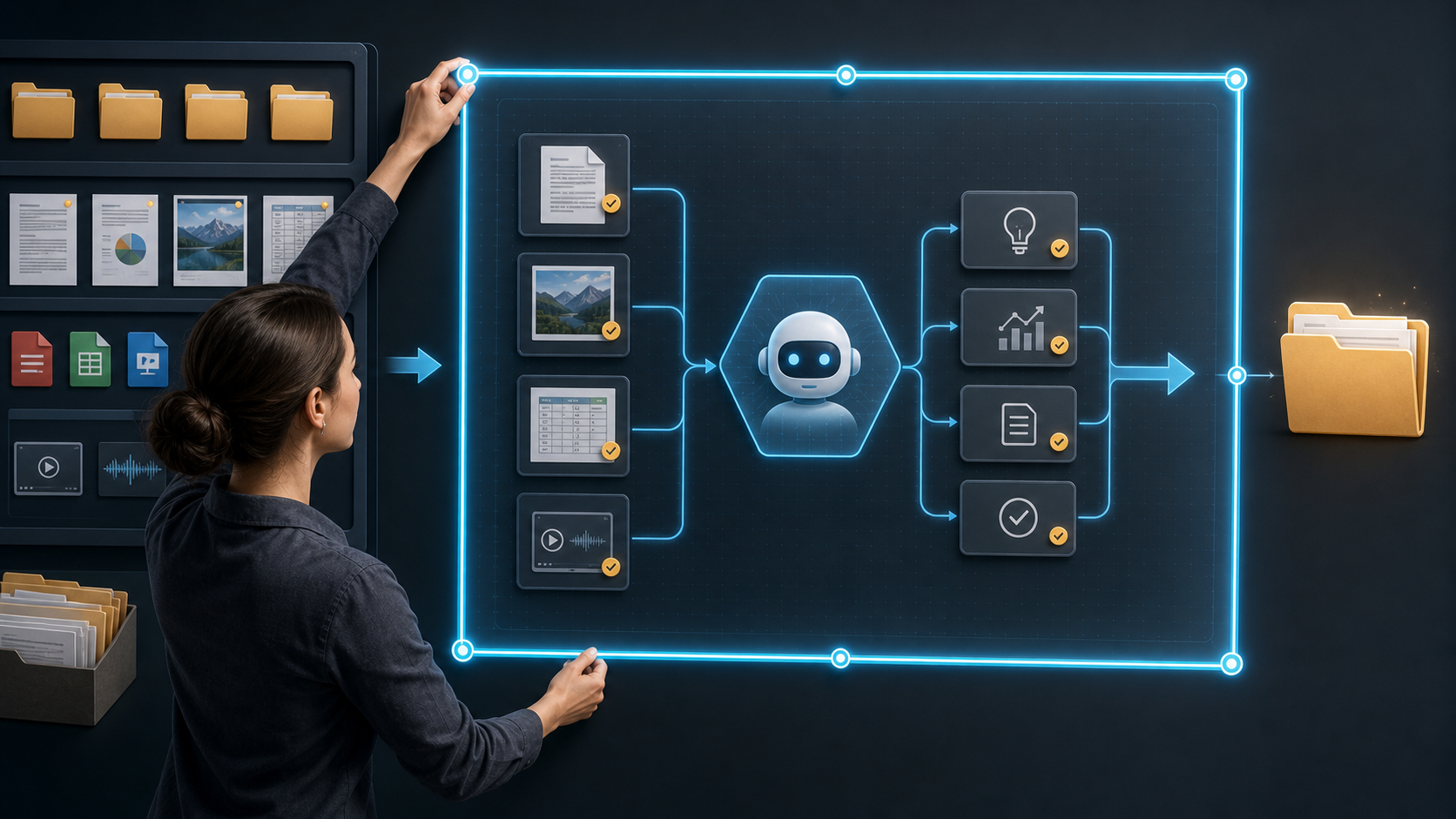
Codex App 裡的 project 可以想成「這次工作的資料夾與環境」。如果你從某個資料夾啟動 Codex CLI,或在 App 裡新增一個 project,Codex 通常會把這個資料夾當成主要工作範圍。
所以第一步,先在電腦裡開一個資料夾(例如「講座籌備」),把活動說明、報名單、講者介紹、圖片素材、過去的簡報放進去。這一步看似基本,卻是整件事的關鍵:你不是把整台電腦交給 AI,而是先圈出一塊清楚的工作範圍,讓它專注,也降低改到不該碰檔案的風險。
當你要 Codex 處理某個檔案,與其只提供模糊關鍵字讓它自行搜尋,不如明確告訴它資料夾、檔名、路徑,或用介面支援的方式附加檔案。上下文越清楚,Codex 越不需要到處搜尋,也比較不會浪費 token。
上下文工程(Context Engineering):把專案資料夾裡的檔案歸好類、名字取清楚,讓任何人看資料夾名稱就找得到東西。就算沒有 AI,你本來也該這樣做;到了 Agent 時代,這件事只會更重要。
2. 權限(Permissions)
權限是初學者最需要先理解的一項,因為它決定 Codex 能在你電腦上執行多大範圍的操作。官方文件把安全控制拆成兩層:
- Sandbox mode:技術上允許 Codex 做什麼,例如能不能寫入 workspace、能不能碰 workspace 外的檔案、命令能不能連網。
- Approval policy:Codex 在什麼情況下必須停下來問你,例如要越過 sandbox、使用網路、執行高風險命令或進行外部工具操作。
可以用三種簡化情境理解:
| 使用方式 | 簡要說明 | 適合情境 |
|---|---|---|
| Read-only / 保守模式 | 主要用來討論、閱讀、規劃;需要修改檔案或執行有副作用的動作時會受限。 | 入門階段、審稿、規劃 |
| Workspace-write / Auto 類模式 | 在目前 project / workspace 內可讀檔、改檔、跑常見命令;要碰外部路徑或網路時通常需要 approval。 | 日常工作最常用 |
| Full access / 高權限模式 | 限制更少,可能可寫入 workspace 外、使用網路或執行更多命令;風險也明顯提高。 | 熟悉 Codex、清楚知道任務風險時才用 |
權限是一把雙面刃:權限越高越便利,但錯誤指令造成的影響也更大。比較穩的做法是先用保守模式或 workspace-write 開始,讓 Codex 說明計畫、修改範圍與驗收方式。等你熟悉它的工作方式,再依任務需要調整權限。
AGENTS.md 可以寫「不要刪除原始檔」「修改前先說明計畫」這類工作規則,但它是自然語言指令,不是強制技術安全邊界。真正的安全邊界仍要靠 sandbox、approval、Git、備份、檔案權限與人工驗收。
進階安全做法是:保留 Git 紀錄、重要檔案先備份、工作時使用 branch / worktree、敏感資料不要放在不必要的工作區,並用系統層級權限或管理政策限制最危險的操作。
3. 上下文(Context)
上下文就是 AI 當下視野範圍內能讀到的資料,包括你跟它說過的話、附上的文件、專案檔案、工具輸出、歷史摘要與可能啟用的 memory。給的上下文越多,它能參考的越多,但不是越多越好:太多資料會讓焦點模糊,也會佔用模型可用的思考空間。
三個實用技巧:
- 一個階段做完就整理狀態:例如名單整理完、活動頁做好後,讓 Codex 先寫一份目前狀態、產出位置、未完成事項,再開新的 thread 或進入下一階段。
- 看 context usage 與 rate limits:Codex 的
/status可查看 thread ID、context usage 與 rate limits。若長任務接近上限,先要求它整理摘要,再繼續。 - 規劃與執行分開:複雜任務先用 planning thread 討論規格,定案後產生一份明確計畫,再開新 thread 依計畫執行。這樣比較省上下文,也比較容易驗收。
「80% 手動壓縮」可以當實務經驗值,但不是官方規則。重點不是卡在某個數字,而是不要讓重要任務在上下文快滿時才被迫整理。
4. AGENTS.md(操作守則)
AGENTS.md 是 Codex 的操作守則,可以把它想成專案的「入職手冊」。它寫清楚這個專案做什麼、服務誰、使用什麼語氣、哪些檔案不能碰、修改後要跑哪些檢查、成果要放在哪裡。
官方文件說 Codex 會在開始工作前讀取 AGENTS.md,並依層級組成 instruction chain:
- Global scope:預設在
~/.codex,可放個人長期偏好。若有AGENTS.override.md,會優先於AGENTS.md。 - Project scope:從專案根目錄往目前工作目錄一路尋找
AGENTS.override.md、AGENTS.md,以及你在設定裡指定的 fallback filenames。 - 越靠近目前工作目錄的指令越晚出現,也越能覆蓋前面的廣泛規則。
範例內容:
請用繁體中文輸出。
不要刪除原始檔;需要移除內容時先提出計畫。
修改文件前先說明你要改哪裡。
所有報名單一律輸出成一份 Excel。
做完附上處理摘要、輸出路徑與驗收方式。
建立方式可以很簡單:直接跟 Codex 說「我要建立一個 AGENTS.md,請用提問的方式協助我」。它可以先問你這個 project 的用途、常見任務、輸出格式、禁止事項與驗收指令,再幫你產出初稿。也可以等專案合作一段時間後,請它根據既有工作流程整理成 AGENTS.md。
常見誤區:AGENTS.md 不是寫越多越好。 官方文件提到 project instructions 有大小限制;實務上也不該把所有 SOP 都塞進去。AGENTS.md 適合放「每次都一定要知道」的最低限度背景與規矩;較長流程適合做成 Skill,需要時再載入。
AGENTS.md 與 Memory 的差別:
| 項目 | 說明 |
|---|---|
| AGENTS.md | 你明確寫下的專案規則,應放必要背景、工作規範與驗收要求。 |
| Memory | Codex 對你長期偏好、常見工作流與既有脈絡的本地回憶層。 |
Memory 可以讓 Codex 少問重複問題,但不應取代團隊規範。重要規則、測試指令、安全要求與交付格式,仍應寫進 AGENTS.md 或專案文件。
一句話總結:個人偏好可以交給 Memory 輔助,專案規則與高風險事項要寫進 AGENTS.md 或正式文件。
六、設定重點
進入 Settings 時,幾個值得注意的地方:
- Personalization / Custom instructions:把你的身份、職務、回覆偏好、常用語言、常見輸出格式寫清楚。官方文件也提到 Codex App 可設定 personality,例如 Friendly、Pragmatic 或 None;實際中文介面名稱依版本為準。
- Memories:Memories 預設可能未開啟;可在設定或
config.toml中啟用。它會把穩定偏好、常見流程、專案慣例與已知注意事項保存成後續可用的上下文。不要放秘密或把它當唯一規則來源。 - 模型與推理強度:截至 2026-07-01,官方 Codex models 文件建議多數任務從
gpt-5.5開始;較輕量任務可考慮gpt-5.4-mini。模型資訊很容易變動,講義與課堂應定期查官方 models 頁。 - 速度 / Fast mode:官方文件說 Fast mode 可讓支援模型速度提升約 1.5x,但會用更高 credit rate;例如 GPT-5.5 為 2.5x standard rate,GPT-5.4 為 2x standard rate。趕時間時可用,日常任務不一定需要。
- Sandbox 與 approvals:重點不是只看「問不問你」,而是確認 sandbox 能碰哪裡、命令能不能連網、approval policy 何時會停下來問。需要上網、跨目錄或使用外部工具時,要預期會有額外 approval。
- 用量與帳單:Codex usage limits 依方案、模型、模式與功能不同而變。官方 pricing 頁目前使用
/5h等表格描述 local messages、cloud tasks、reviews 等額度;實際可用量請以 pricing 與 app 顯示為準。
七、Skill 技能
Skill 可以理解成一套可重複使用的工作流程。它通常是一個資料夾,裡面有 SKILL.md,可搭配 references、scripts 或 assets。Codex 會先看到 skill 的名稱、描述與路徑;只有在判斷需要使用該 skill 時,才載入完整 SKILL.md。這種設計能節省上下文。
例如「講座籌備」這個 Skill 可以包含:讀取報名資料、整理名單與確認欄位、產生邀請信初稿、輸出籌備狀態報告、活動結束後產出復盤摘要。下次辦類似活動就不用重講一遍。
Skill 常見層級:
| 層級 | 官方常見位置 | 適用情境 |
|---|---|---|
| 專案層級 | .agents/skills 或專案路徑往上掃描到的 .agents/skills | 只在特定專案或資料夾生效的流程 |
| 個人層級 | $HOME/.agents/skills | 任何專案都可能用到的個人流程 |
| 管理者 / 系統層級 | admin 或 Codex bundled skills | 團隊預設或 OpenAI 內建能力 |
Codex 可以用兩種方式啟用 Skill:
- 明確叫用:在 prompt 裡寫
$skill-name,或在支援的介面中從 skill selector //skills選取。 - 隱含叫用:Codex 依 skill description 判斷任務符合時,自動載入。
管理上要注意:Skill 要專注在一件事,description 要清楚寫「什麼情況該用、什麼情況不該用」。若要把多個 skills、app integrations 或 MCP servers 包成可安裝的套件,官方建議使用 Plugin。
八、外掛程式(Plugins)
Plugins 是 Codex 裡可安裝的能力包,可能包含:
- Skills:可重複使用的工作流程。
- Apps:像 Gmail、Google Drive、Slack、GitHub 這類外部服務連線,讓 Codex 讀取資訊或採取動作。
- MCP servers:提供更多工具或共享資訊的服務。
官方文件列出的例子包括:
- Gmail plugin:讓 Codex 讀取與管理 Gmail。
- Google Drive plugin:跨 Drive、Docs、Sheets、Slides 工作。
- Slack plugin:摘要頻道、整理通知或草擬回覆。
- Sites:建立與部署 hosted websites、web apps、games。
- Codex Security plugin:掃描授權的程式碼並確認可能的安全 finding。
其他像 PDF、簡報、設計、圖片、部署、瀏覽器控制、Computer Use、Chrome、GitHub 等能力,可能透過 plugin、skill、MCP、app connector 或本機工具提供;是否可用取決於你當下安裝的 plugin、帳號方案、工作區政策與平台。講義中若列舉工具,應寫成「若已安裝對應 plugin / skill / MCP」而不是保證每個帳號都有。
安裝時不要只看「能不能連上」,也要看授權範圍與資料分享政策。外部服務仍受自己的帳號權限、隱私政策與操作風險限制。
九、實戰應用場景
以下用「辦講座」與「校慶園遊會籌備」兩個生活化情境,示範 Codex 如何接手繁瑣任務。這些例子需要的工具與權限不一定每個環境都有,實作前請確認 plugin、skill、sandbox、approval 與帳號授權。
1. 掃描與重新命名檔案
我們的電腦裡常有許多版本名稱不一致的檔案,例如「最終版」「修正版」「新版」等。讓 Codex 先掃描指定資料夾,告訴你裡面有哪些檔案、各是做什麼的,再提出統一命名建議(例如把 Final真的最後版 改成 202606_講座活動說明)。正式改名前,請它列出 rename plan,確認後再執行。
2. 表格彙整加處理日誌
把各班報名單或攤位申請表放進 project,請 Codex 彙整成一份只留重要欄位(姓名、部門、信箱、是否出席、飲食需求)的 Excel 或 CSV。
一個實用原則是:明確說明用途,會顯著改善結果。 不要只說「整理名單」,而是說「請整理一份等一下要拿來做出席確認的名單」,它就比較知道哪些欄位重要、哪些可以移到備註。
整理完請它順便產出一份「處理日誌」,記錄改了什麼、哪些資料缺漏、哪些人要補信箱、輸出檔在哪裡。Codex 的輸出仍需要驗收;留下處理紀錄才方便檢查與追蹤。
Codex 也能處理平行任務,例如一邊彙整攤位申請表,一邊合併志工名單。但正式執行前應先把任務切清楚,並用不同檔案、thread、branch 或 worktree 隔離,避免成果互相影響。
3. Gmail 客製化信件
有了乾淨名單後,若已安裝並授權 Gmail plugin,可以請 Codex 針對不同來賓寫客製化邀請信,依身份撰寫不同開頭與致詞段落,先存到 Gmail 草稿匣。你確認樣本語氣、收件人、附件、稱謂沒問題後,再讓它產生其餘草稿。
寄信屬於對外行動,請務必保留人工抽查與確認步驟。
4. 簡報草稿
根據活動說明與講者介紹,先請 Codex 列出簡報架構:活動背景、流程、講者介紹、報名資訊、注意事項。若環境裡有簡報相關 plugin、skill 或本機工具,再請它輸出 PPTX、PDF 或 Markdown 版簡報草稿。
5. 生圖與視覺素材
Codex 可在 thread 中生成或編輯圖片。官方文件提到內建 image generation 使用 gpt-image-2,可用於 UI assets、banners、backgrounds、illustrations、sprite sheets、placeholders 等。這類功能會消耗 Codex usage limits,而且 Free 方案不一定支援。
應用例子:
- 活動主視覺、簡報封面、講者卡片。
- 志工識別證:先產生背景底圖,再用 PDF 或文件工具把姓名批次套入。
- 網頁或儀表板的 placeholder、banner、icon 或背景圖。
中文字、品牌風格與細節仍要人工驗收。不要把「中文字一定漂亮、不會黏在一起」寫成保證;比較穩的做法是把生成圖當初稿,讓 Codex 迭代,最後由人確認。
6. HTML 儀表板
請 Codex 做一個 HTML 儀表板,把來賓出席率、各班攤位資料、活動整體進度整合在同一頁,搭配清楚圖表。若已安裝前端設計相關 skill 或 plugin,可以要求它依指定風格與響應式規格調整。
儀表板本身不會自動抓最新資料;若要定期更新,需另外設計資料來源、同步流程、automation 或外部整合。
7. 活動官網與部署
做較複雜的網站任務時,不要一開始只說「做一個網站」。比較好的做法是先請 Codex 進入 plan mode,列出頁面、內容、素材、報名流程、部署方式與驗收標準。規格清楚後,再讓它開始實作。
做完後用 in-app browser 預覽,用 Annotation mode 留下精準修改意見。若你的環境有 Sites 或其他部署 plugin / tool,可以請 Codex 依該工具的流程部署並回報網址;若沒有,就先輸出可本機打開或可交給部署平台的檔案。
做到這裡,你已經在使用自然語言協作式開發:即使不直接撰寫程式,也能用語音或文字描述結果、查看畫面、提出修改,再讓 Codex 回到檔案裡修正。不過,驗收與決策仍然是你的責任。
十、自動化排程
自動化適合固定、重複、可驗收的工作。Automation fits fixed, repeatable, reviewable work.
定時檢查報名資料、更新 Excel、找尚未回覆者、彙整過去 24 小時工作紀錄。Check registration data, update Excel files, find non-responders, or summarize the past 24 hours.
確認 prompt、權限、模型、工具、輸出位置與風險都符合預期。Confirm the prompt, permissions, model, tools, output location, and risk before scheduling.
對外寄送、刪除、帳務、個資與安全設定,仍要保留人工把關。External sends, deletion, finance, personal data, and security settings still need human review.
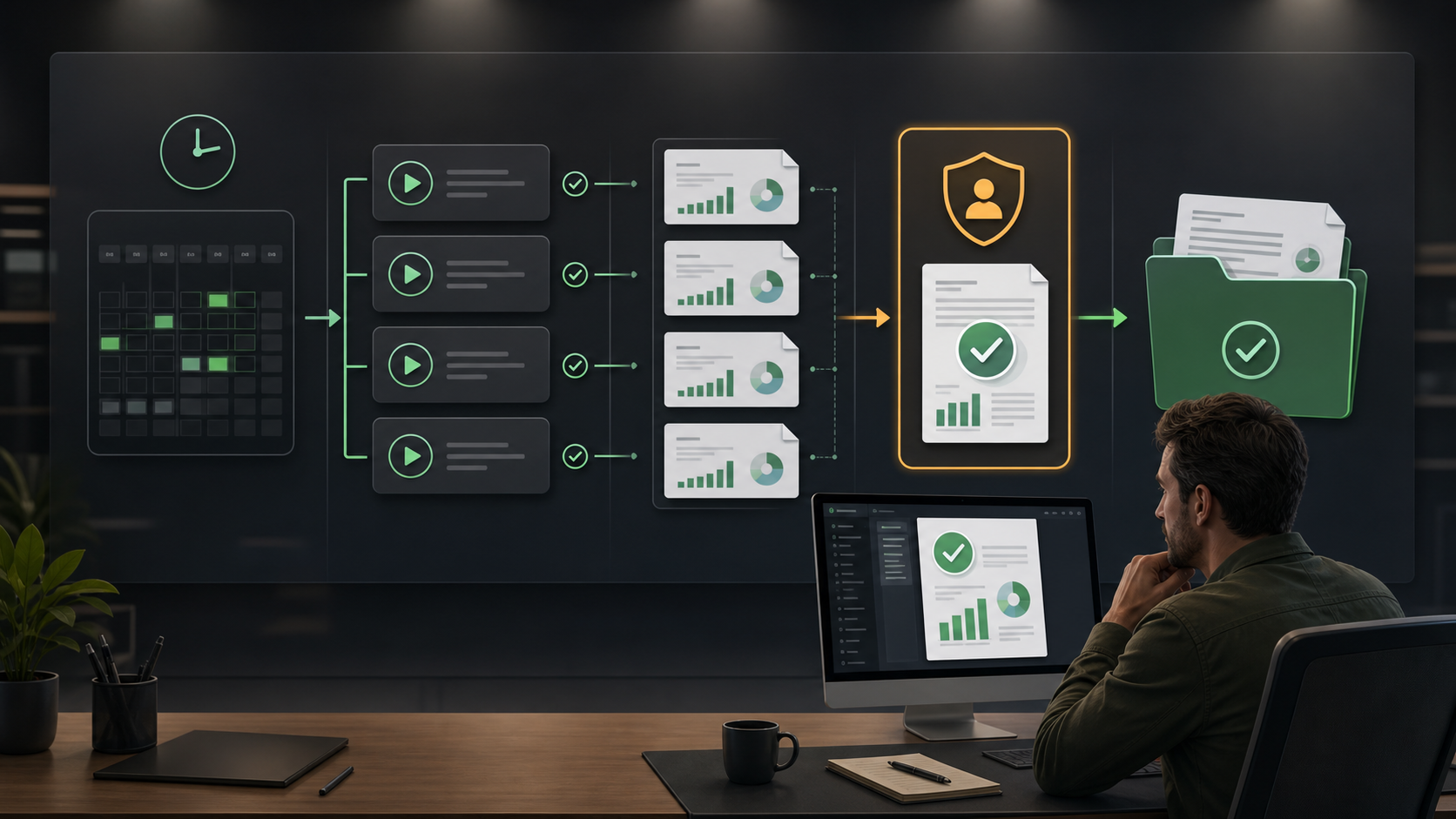
Codex App 支援 Automations,可排程 recurring tasks。你可以請 Codex 建立或更新 automation,例如「每天早上 9 點檢查報名資料,有變動才回報」。
使用前要知道幾個前提:
- Project-scoped automations 需要本機 Codex App 正在執行、電腦開機、project 仍在磁碟上。
- 在 Git repository 中,automation 可選擇直接跑在 local project,或跑在 dedicated background worktree。worktree 比較適合隔離自動產生的修改。
- Automations 使用你的 sandbox 設定;read-only 會限制修改檔案、網路與 app 操作;full access 風險較高。
- 排程任務第一次上線前,最好先在普通 thread 手動跑一次,確認 prompt、權限、模型、工具與輸出都符合預期。
常見的自動化:
- 每天早上 9 點自動檢查報名表單,有新報名就更新到資料夾裡的 Excel,並回報差異。
- 每天找出尚未回信的人,產生追蹤信草稿。
- 定時檢查信箱是否有來賓回覆,更新出席狀態與儀表板資料。
- 定期 review 過去 24 小時的工作紀錄,提出 AGENTS.md 或 Skill 的改進建議,但實際修改仍需人工檢查 diff。
自動化的重點不是展示技術,而是降低「記得去做」的隱形成本。越是固定、重複、可驗收的工作,越適合交給 automation;越是高風險、需要判斷或會對外送出的動作,越需要人工把關。
十一、進階:Computer Use 與遠端控制
Computer Use
Computer Use 讓 Codex 能看見並操作 macOS 或 Windows 的圖形介面,例如點選、輸入、切換視窗、檢查桌面 app 或瀏覽器流程。它適合用在 command line、API、plugin、MCP 都不好處理的 GUI 任務,例如測試桌面 app、重現只在畫面上發生的 bug、操作沒有結構化整合的資料來源。
使用前要先安裝 Computer Use plugin;macOS 需要授權 Screen Recording 與 Accessibility。Windows 上 Computer Use 會操作目前 active desktop,不能在同一個 Windows session 背景執行而你同時繼續用滑鼠鍵盤工作。
重要提醒:Computer Use 是最後手段之一。 如果目標工具有 API、CLI、MCP 或專用 plugin,優先用結構化整合,因為比較穩、可重複、可驗收。需要 GUI 時再用 Computer Use,並保持任務範圍小、在敏感流程中留在旁邊確認。
手機遠端控制
Remote connections 讓你可以從另一台裝置使用 Codex。官方文件確認可用 ChatGPT mobile app 控制一台已連線的 Mac 或 Windows Codex App host,也可以從支援的 Codex App 裝置延續工作,或讓 Codex App 連到 SSH host 的專案。
設定重點:
- 需要同一個 ChatGPT account 與 workspace 的 Codex access。
- 手機端需要最新 ChatGPT app;host 端需要最新 Codex App,且電腦要醒著、在線、登入同帳號與 workspace。
- 設定從 Codex App host 開始,掃 QR code 後在 ChatGPT mobile app 完成配對。
- Remote access 使用 host 上的 projects、threads、files、credentials、permissions、plugins、Computer Use、browser setup 與 local tools。
- Windows host 可被 iOS、Android 或 Mac 控制;但 Windows Codex App 目前不能控制另一台電腦。
如果 host 睡眠、斷網或關閉 Codex,遠端控制就會中斷。若遠端任務會使用 Computer Use,尤其是 Windows,請預期 host 桌面會被 Codex 使用。
十二、Codex vs Claude Code
Codex 與 Claude Code 都是 AI coding agent 類工具,很多觀念相通:專案範圍、權限、上下文、持久規則、可重複流程、驗收與版本控制都很重要。不過,跨產品比較應該分開查各家官方文件;以下只保留與 Codex 官方文件可對齊的說法。
| 面向 | Codex 端較穩的說法 | 備註 |
|---|---|---|
| 模型 | ChatGPT 登入時建議使用官方推薦模型;也可透過相容 API 指向支援 Chat Completions 或 Responses API 的模型與 provider。 | 不應簡化成「只能用 GPT 系列」。 |
| 規則文件 | Codex 讀 AGENTS.md,並支援 global、project、nested guidance。 | 其他工具是否讀 CLAUDE.md、GEMINI.md,需查各自官方文件。 |
| Skill | Codex skills 使用 SKILL.md,可包含 instructions、resources、scripts。 | Markdown 是常見格式,但不同產品對 skill 的支援不一定相同。 |
| 圖片 | Codex 可在 thread 中生成或編輯圖片,官方文件提到內建 image generation 使用 gpt-image-2。 | 中文排版品質、其他工具強弱是經驗比較,不應寫成官方事實。 |
| 遠端控制 | Codex 支援 remote connections,可從 ChatGPT mobile app 控制 connected Mac / Windows host。 | 其他產品穩定性需另查與實測。 |
| 價格與額度 | Codex 額度依 OpenAI 方案、模型與功能而異。 | 不要用未更新的價格比較當教學事實。 |
跨工具遷移的穩健做法:把真正核心的規則與知識寫在專案文件中,例如 CORE_RULES.md、AGENTS.md、README、SOP 或 docs。再依不同工具的官方規則,建立對應入口文件。這就是工程上說的 SSOT(Single Source of Truth,單一真實來源):核心內容只維護一份,其他工具入口負責引用或摘要。
Skill 與 Markdown 文件雖然容易跨工具閱讀,但不要假設所有 agent 都會用同樣方式觸發、讀取、裁切或執行。跨平台使用時,最重要的是保留清楚的專案結構、檔案命名、驗收流程與版本控制。
十三、心法總結
- 把 AI 當成協作對象,而不是一次性工具。 初學者常把 AI 當成臨時工具,今天請它做簡報、明天寫文案,卻沒有建立穩定工作脈絡。較成熟的使用方式會建立 project、AGENTS.md、Skill 與驗收流程,讓工作方法能沉澱下來。
- 重複且可驗收的事交給 AI,高判斷責任留給自己。 回覆常見問題、整理銷售報表、做會議摘要、分類檔案、產生草稿,這些都很適合交給 Codex 作為起點;但對外寄送、刪除檔案、改帳務、動個資與安全設定,仍要人工確認。
- Codex 也可以作為你的學習輔助。 不會用的 Skill 可以問它「這是做什麼的、什麼情況會觸發」;要裝新工具可以先請它說明風險、步驟與驗收方式,再讓它協助執行。
- 你是 Agent 的管理者。 不能把任務交給它就預設它會產出你腦中那個完整版本。要像帶新同事一樣先給背景、講清目標、看它的計畫、驗收成果;它做錯時不要只說「我不喜歡,重做」,而要告訴它哪裡不對、為什麼不對、下次怎麼判斷。
掌握「本機檔案操作、專案範圍、sandbox 與 approval、上下文管理、AGENTS.md、Skill、Plugins、Automations、Computer Use、Remote connections」這條學習路徑,Codex 就不只是節省幾分鐘的工具,而會慢慢變成一套可以持續訓練、校正、沉澱的個人工作系統。
參考影片來源
本文參考下列 Codex 教學 YouTube 影片整理,並已依 2026-07-01 OpenAI Developers 官方 Codex 文件校正產品事實。學員需要回看示範、確認操作畫面或複習案例時,可直接觀看原始影片:
- 影片 1:Codex 與 AI 內容創作系統入門
- 影片 2:Codex 初學者教學與 AI Agent 基本概念
- 影片 3:Codex 桌面版應用與跨工具工作流程
- 影片 4:Codex 在表格、簡報、合併列印與網站任務中的應用
本文參考四支 Codex 教學 YouTube 影片整理,並依 2026-07-01 OpenAI Developers 官方 Codex 文件校正。實際功能、介面、方案、模型與可用額度可能隨版本更新而異,請以官方最新說明與你當下的 Codex App / CLI / IDE extension 為準。
Complete Introduction to Codex: Turning AI into an Assistant for Computer-Based Work
This handout was prepared with reference to four Codex teaching videos on YouTube, then corrected against the OpenAI Developers Codex documentation on July 1, 2026. It is designed for an AI Agent workshop. Learners who need to review demonstrations can use the links at the end to watch the original videos. Actual features, UI labels, and usage limits depend on the Codex version and official documentation available when you use it.
1. What Codex Is
Codex 不是另一個聊天視窗,而是能進入工作區的 AI Agent。Codex is not just another chat window. It is an AI agent that can work inside a project.
它能讀檔、改檔、執行命令、檢查結果,並把成果存回指定 project。也因此,使用者要懂範圍、權限、上下文與驗收。It can read files, edit files, run commands, inspect results, and save outputs back to a project. That means users must understand scope, permissions, context, and review.
Codex is OpenAI's AI coding agent. It does more than answer questions: within an authorized working environment, it can understand a project, read files, edit files, run commands, inspect results, and produce code, documents, spreadsheets, presentation materials, web pages, and other artifacts.
In one sentence, the difference is:
- ChatGPT on the web: primarily a browser-based conversation. You usually upload materials yourself, download results yourself, and organize files yourself.
- Codex: can run locally or through Codex surfaces and work directly inside the project / workspace you specify. Within the boundaries allowed by sandbox and approval settings, it can read files, edit files, run tools, use plugins and skills, and save results back into your project.
A practical analogy: using Codex only as a chatbot means using only a small part of a broader working system. You miss the workflows it is designed to support.
Because Codex may be able to touch your files and tools, you should not give one vague instruction and stop checking the result. To use it reliably, you need to understand project scope, permissions, context, AGENTS.md, skills, plugins, and how to review the output.
2. Levels of AI: From Conversationalist to Agent
For workshop teaching, one useful way to think about AI capability is to divide it into several levels:
| Level | Name | Description |
|---|---|---|
| Level 1 | Conversationalist | Can chat and answer questions. |
| Level 2 | Reasoner | Can understand context, perform more complex reasoning, and use memory or past context when needed. |
| Level 3 | Agent | Does not only reply; it can use tools, operate on files, and execute tasks. |
| Level 4 | Innovator | Can propose new solutions or research directions within a domain. |
| Level 5 | Organizer | Can coordinate multiple tasks, systems, or roles toward longer-term goals. |
This is not an official Codex product classification. It is a workshop framework. In this framework, Codex is closer to an agent than to a normal chatbot because it can use tools in an authorized environment and move from answering to doing.
Codex capabilities can be grouped into six areas:
- Understanding project context: reading project files, configuration, and existing structure to understand what you are working on.
- Writing and planning: helping write code, documents, specifications, tests, and implementation plans.
- Operating local tools: editing files, running commands, and running tests within sandbox and approval boundaries.
- Checking and correcting: using errors, test results, or rendered UI state to revise its work.
- Producing work artifacts: creating documents, spreadsheets, slides, images, HTML pages, and reports.
- Connecting external tools: using Plugins, Apps, MCP, or Computer Use to connect Gmail, Google Drive, Slack, GitHub, browsers, or desktop apps.
3. Getting Started
Download and Sign In
- Go to the official OpenAI Codex page or the ChatGPT / OpenAI Developers Codex documentation, then install the Codex App, CLI, or IDE extension for your platform.
- Codex supports two common sign-in methods:
- Sign in with ChatGPT: use Codex access provided by your subscription plan or workspace. Current official documentation lists Codex across Free, Go, Plus, Pro, Business, Edu, and Enterprise plans, but features, limits, and integrations vary by plan.
- Sign in with an API key: useful for people familiar with APIs, CLI workflows, automation, or CI environments. API-key usage is billed through OpenAI Platform API pricing, and some ChatGPT workspace or cloud features may not be available.
For stable day-to-day use, Plus or a higher plan is usually more practical because the available usage and features are better suited to longer work sessions. Free is better for exploring quick coding tasks. Features such as image generation may not be available on Free, so always check the official pricing page.
Interface Language
If your version of the Codex App provides language settings, look for the language option in Settings and switch to the language you prefer. UI labels and available languages can change by version, so teaching materials should avoid hard-coding exact button labels. In class, follow the screen you actually see.
4. Interface Tour
You can think of the Codex App in three areas:
- Sidebar: entry points for threads, projects, plugins, skills, automations, settings, and related features. The exact items may differ by version.
- Conversation area: where you give instructions, add background, answer questions, review Codex plans, and inspect results. You can type, and some versions support voice input or dictation.
- Typing
/opens slash commands, such as checking status, entering plan mode, creating an AGENTS.md scaffold, or viewing MCP status. Available commands depend on environment and version. - For explicit skill invocation, official docs recommend
$skill-name. Plugins and app tools often use@, such as@Browser,@Chrome, or a specific plugin. - When attaching files, referencing project content, or invoking tools, follow the composer hints shown in your current app version.
- Typing
- Results and preview area: where you can inspect diffs, files, terminal output, PDFs, spreadsheets, slides, images, web previews, or other artifacts.
Visual Annotation for Web Pages
When Codex creates a web page or HTML report, you can use the in-app browser to preview local development servers, file-backed previews, or public pages that do not require sign-in. In Annotation mode, you can select an element or area and leave feedback such as “this button overflows on mobile” or “this heading is too large.” Then ask Codex to address the comments, and it can return to the code or files to revise them.
The in-app browser does not support login flows, existing cookies, browser extensions, or your normal browser profile. For signed-in websites, use a regular browser, the Codex Chrome extension, or Computer Use, and treat account security carefully.
Branching and Parallel Experiments
If your version provides branching, forking, background threads, or worktree features, you can test different solutions separately. A reliable pattern is to ask Codex to explain its plan before major changes, then use Git branches, worktrees, or separate threads to isolate A/B approaches and avoid mixing results.
5. Four Fundamentals
四大基本功,是讓 Codex 穩定工作的最低門檻。Four fundamentals are the minimum for reliable Codex work.
這次工作範圍與主要資料夾。The folder and environment for this work.
Codex 技術上能碰什麼、何時要問你。What Codex can touch and when it must ask.
它當下能看到的資料、對話、檔案與工具輸出。What it can currently see: messages, files, and tool output.
專案規則、語氣、禁忌、驗收與交付格式。Project rules, tone, forbidden actions, checks, and delivery format.
An agent that can touch local files and tools requires four fundamentals: project, permissions, context, and AGENTS.md. The examples below use the scenario of preparing a workshop event.
1. Project
開始前,先確認這次工作的範圍與位置。Before starting, define where this work lives.
把活動說明、名單、素材與過去成果放在同一個 project。Put descriptions, lists, assets, and prior outputs in one project.
直接給資料夾、檔名或目標檔案,減少猜測。Give folders, filenames, or target files to reduce guessing.
清楚命名本來就是好習慣,Agent 時代更重要。Clear naming is already good practice; agents make it more important.
Codex 可以執行,但範圍與結果仍由人確認。Codex can execute, but people still confirm scope and results.
In the Codex App, a project is the folder and environment for the current work. If you start Codex CLI from a folder, or add a project in the App, Codex usually treats that folder as the main working scope.
Start by creating a folder on your computer, such as “Workshop Planning,” and put the event description, registration lists, speaker bios, image assets, and past slide decks inside. This basic step matters: you are not handing your whole computer to AI; you are drawing a clear work area so Codex can focus and reduce the risk of touching unrelated files.
When you want Codex to process a file, do not give only a vague keyword and ask it to search. Give the folder, file name, path, or attach the file using the interface. Clearer context means less searching, fewer wasted tokens, and fewer wrong assumptions.
Context Engineering: organize files into clear folders and give them readable names so anyone can understand the project structure. You should do this even without AI; in the agent era, it matters even more.
2. Permissions
Permissions are critical because they determine how much Codex can do on your computer. Official documentation separates safety controls into two layers:
- Sandbox mode: the technical boundary, such as whether Codex can write inside the workspace, touch files outside it, or let commands access the network.
- Approval policy: when Codex must stop and ask you, such as before leaving the sandbox, using the network, running a high-risk command, or operating an external tool.
A practical way to think about common modes:
| Mode | Plain-language meaning | Good fit |
|---|---|---|
| Read-only / conservative | Mainly for discussion, reading, and planning. File edits or side-effect actions are restricted. | Introductory use, review, planning |
| Workspace-write / Auto-like | Can read, edit, and run common commands inside the current project / workspace. Access outside the workspace or network use usually needs approval. | Daily work |
| Full access / high permission | Fewer restrictions. It may write outside the workspace, use the network, or run more commands, but risk increases sharply. | Only when you understand Codex and the task risk |
Permissions are a double-edged tool: higher permission reduces friction, but mistakes can have bigger impact. A safer approach is to start with read-only or workspace-write, ask Codex to describe the plan, edit scope, and verification steps, and then widen permissions only when the task requires it.
AGENTS.md can say things like “do not delete source files” or “explain the plan before editing,” but it is natural-language guidance, not a hard technical safety boundary. Real safety still depends on sandboxing, approvals, Git, backups, file permissions, and human review.
Advanced safety practices include keeping Git history, backing up important files, working on branches or worktrees, keeping sensitive data out of unnecessary workspaces, and using system-level permissions or managed policies to block the riskiest operations.
3. Context
Context is everything the AI can currently see: your conversation, attached documents, project files, tool output, summaries of past work, and possibly memory. More context can help, but more is not always better. Too much material can blur the focus and consume the model's reasoning space.
Three useful habits:
- Summarize state after each phase: after finishing a registration list or event page, ask Codex to write the current state, output locations, and remaining tasks before opening a new thread or moving to the next phase.
- Watch context usage and rate limits: Codex
/statuscan show the thread ID, context usage, and rate limits. If a long task approaches the limit, ask for a summary before continuing. - Separate planning from execution: discuss complex requirements in a planning thread, generate a clear plan, then open a new thread to execute that plan. This saves context and makes review easier.
“Compress manually around 80%” can be a practical habit, but it is not an official rule. The point is to avoid waiting until an important task is already near the context limit before organizing it.
4. AGENTS.md
AGENTS.md is Codex's operating guide for a project. Think of it as an onboarding manual. It explains what the project is, who it serves, what tone to use, which files not to touch, what checks to run after edits, and where outputs should go.
Official documentation says Codex reads AGENTS.md before work and builds an instruction chain by scope:
- Global scope: by default under
~/.codex, for personal long-term preferences. IfAGENTS.override.mdexists, it takes precedence overAGENTS.md. - Project scope: Codex walks from the project root down to the current working directory and looks for
AGENTS.override.md,AGENTS.md, and configured fallback filenames. - Guidance closer to the current directory appears later and can override broader rules.
Example content:
Please respond in Traditional Chinese.
Do not delete source files; propose a plan before removing content.
Before editing documents, explain what you will change.
Always output registration lists as one Excel file.
When finished, include a summary, output path, and verification method.
A simple way to create one is to ask Codex: “I want to create an AGENTS.md. Please help me by asking questions.” Codex can ask about the project purpose, common tasks, output formats, forbidden actions, and verification commands, then draft the file. You can also let a project mature first, then ask Codex to summarize the workflow into AGENTS.md.
Common pitfall: AGENTS.md should not contain everything. Official documentation mentions size limits for project instructions, and in practice you should not put every SOP inside it. AGENTS.md should contain the minimum background and rules needed every time. Longer workflows are better as Skills loaded only when needed.
Difference between AGENTS.md and Memory:
| Item | Explanation |
|---|---|
| AGENTS.md | Rules you explicitly write for the project, including required background, working agreements, and verification requirements. |
| Memory | Codex's local recall layer for long-term preferences, recurring workflows, and known context. |
Memory can reduce repeated questions, but it should not replace team rules. Important rules, test commands, safety requirements, and delivery formats belong in AGENTS.md or project documentation.
One-sentence summary: personal preferences can be helped by Memory, but project rules and high-risk instructions should live in AGENTS.md or formal documentation.
6. Settings
In Settings, pay attention to these areas:
- Personalization / Custom instructions: specify your role, reply preferences, common language, and expected output formats. Official docs also mention Codex App personality settings such as Friendly, Pragmatic, or None; the exact localized label depends on version.
- Memories: Memories may be off by default. You can enable them in settings or
config.toml. They store stable preferences, recurring workflows, project conventions, and known pitfalls as future context. Do not store secrets or treat memory as the only rule source. - Models and reasoning effort: as of July 1, 2026, official Codex models documentation recommends starting most tasks with
gpt-5.5; lighter tasks may usegpt-5.4-mini. Model information changes quickly, so class materials should re-check the official models page regularly. - Speed / Fast mode: official docs say Fast mode can make supported models about 1.5x faster but uses a higher credit rate. For example, GPT-5.5 uses 2.5x the standard rate and GPT-5.4 uses 2x. Use it when time matters; it is not always necessary.
- Sandbox and approvals: do not only ask whether Codex will prompt you. Confirm what the sandbox can touch, whether commands can use the network, and when the approval policy will pause for permission. Network, cross-directory work, or external tools may require extra approvals.
- Usage and billing: Codex usage limits vary by plan, model, mode, and feature. The official pricing page currently uses tables such as
/5hfor local messages, cloud tasks, and reviews. Actual usage should follow pricing docs and the app display.
7. Skills
A Skill is a reusable workflow. It is usually a folder containing SKILL.md, optionally with references, scripts, or assets. Codex initially sees the skill name, description, and path; it loads the full SKILL.md only when it decides the skill is needed. This saves context.
For example, a “workshop preparation” Skill could include reading registration data, checking fields, drafting invitation emails, producing a preparation status report, and creating a post-event review. For the next similar event, you do not need to explain the workflow from scratch.
Common skill scopes:
| Scope | Official common location | Good fit |
|---|---|---|
| Project scope | .agents/skills or .agents/skills discovered while walking the project path | Workflows only relevant to a specific project or folder |
| User scope | $HOME/.agents/skills | Personal workflows that may be useful in any project |
| Admin / system scope | Admin-managed or Codex bundled skills | Team defaults or built-in OpenAI capabilities |
Codex can activate a Skill in two ways:
- Explicit invocation: write
$skill-namein the prompt, or choose it from a supported skill selector //skills. - Implicit invocation: Codex matches the task against the skill description and loads it automatically.
A good Skill should focus on one job, and its description should clearly state when to use it and when not to use it. If you want to distribute multiple skills, app integrations, or MCP servers as an installable package, official docs recommend using a Plugin.
8. Plugins
Plugins are installable capability bundles in Codex. They may contain:
- Skills: reusable workflows.
- Apps: external service connections such as Gmail, Google Drive, Slack, or GitHub, allowing Codex to read information or take actions.
- MCP servers: services that provide more tools or shared information.
Official examples include:
- Gmail plugin: lets Codex read and manage Gmail.
- Google Drive plugin: works across Drive, Docs, Sheets, and Slides.
- Slack plugin: summarizes channels, triages notifications, or drafts replies.
- Sites: creates and deploys hosted websites, web apps, and games.
- Codex Security plugin: scans authorized code and confirms plausible security findings.
Other capabilities such as PDF, presentations, design, images, deployment, browser control, Computer Use, Chrome, and GitHub may be provided through plugins, skills, MCP, app connectors, or local tools. Availability depends on installed plugins, account plan, workspace policy, and platform. In teaching material, phrase these as “if the corresponding plugin / skill / MCP is installed,” not as guaranteed for every account.
When installing plugins, do not only check whether they connect. Also check the authorization scope and data-sharing policies. External services still follow their own account permissions, privacy policies, and operation risks.
9. Practical Scenarios
The examples below use workshop and campus fair preparation to show how Codex can take on repetitive work. These examples require tools and permissions that may not exist in every environment, so first confirm plugins, skills, sandbox settings, approvals, and account authorization.
1. Scanning and Renaming Files
Many computers contain files named “final,” “really final,” and “final final this time.” Ask Codex to scan a specified folder, explain what files are inside, and propose a consistent naming plan, such as renaming Final真的最後版 to 202606_講座活動說明. Before actual renaming, ask for a rename plan and confirm it.
2. Spreadsheet Consolidation and Processing Logs
Put class registration lists or booth applications into the project, then ask Codex to consolidate them into an Excel or CSV file with only important fields, such as name, department, email, attendance status, and dietary needs.
A useful principle: state the purpose clearly. Instead of only saying “organize this list,” say “prepare a list for attendance confirmation.” Codex will better understand which columns matter and which should be moved to notes.
After processing, ask Codex to produce a processing log: what changed, what data is missing, who needs an email address, and where the output file is. Codex output still needs review; logs make checking and follow-up easier.
Codex can also handle parallel tasks, such as consolidating booth applications while merging volunteer lists. Before execution, split tasks clearly and isolate them by files, threads, branches, or worktrees so outputs do not interfere with each other.
3. Customized Gmail Drafts
After cleaning the list, if the Gmail plugin is installed and authorized, ask Codex to draft customized invitations for different guests, with different openings and greetings based on role, and save them as Gmail drafts. After checking tone, recipients, attachments, and names in samples, let it generate the rest.
Sending email is an external action. Keep human sampling and confirmation in the loop.
4. Slide Drafts
Based on the event description and speaker bios, ask Codex to outline the deck: background, agenda, speaker introduction, registration information, and notes. If your environment has a presentation plugin, skill, or local tool, ask it to output PPTX, PDF, or a Markdown slide draft.
5. Images and Visual Assets
Codex can generate or edit images in a thread. Official docs mention built-in image generation using gpt-image-2, useful for UI assets, banners, backgrounds, illustrations, sprite sheets, and placeholders. This consumes Codex usage limits, and Free plans may not support it.
Example uses:
- Event key visuals, slide covers, speaker cards.
- Volunteer badges: generate a clean background, then use PDF or document tools to batch-fill names.
- Placeholders, banners, icons, or backgrounds for web pages and dashboards.
Chinese text, brand style, and details still require human review. Do not promise that Chinese typography will always be perfect. Treat generated images as drafts, iterate with Codex, and let a person make the final call.
6. HTML Dashboards
Ask Codex to build an HTML dashboard that combines guest attendance, class booth data, and overall event progress with clear charts. If a frontend design skill or plugin is installed, ask it to follow the specified style and responsive requirements.
The dashboard itself does not automatically fetch fresh data. For recurring updates, design the data source, synchronization process, automation, or external integration separately.
7. Event Website and Deployment
For a more complex website, do not start with only “build me a website.” A better workflow is to ask Codex to enter plan mode, list pages, content, assets, registration flow, deployment method, and acceptance criteria. Once the specification is clear, let it implement.
After completion, preview it with the in-app browser and leave precise feedback in Annotation mode. If your environment has Sites or another deployment plugin / tool, ask Codex to follow that flow and report the URL. If not, have it output files that can be opened locally or handed to a deployment platform.
At this point you are using natural-language collaborative development: even without writing code directly, you can describe the desired result, inspect the screen, request revisions, and let Codex update the files. Review and decision-making still remain your responsibility.
10. Automations
自動化適合固定、重複、可驗收的工作。Automation fits fixed, repeatable, reviewable work.
定時檢查報名資料、更新 Excel、找尚未回覆者、彙整過去 24 小時工作紀錄。Check registration data, update Excel files, find non-responders, or summarize the past 24 hours.
確認 prompt、權限、模型、工具、輸出位置與風險都符合預期。Confirm the prompt, permissions, model, tools, output location, and risk before scheduling.
對外寄送、刪除、帳務、個資與安全設定,仍要保留人工把關。External sends, deletion, finance, personal data, and security settings still need human review.
The Codex App supports Automations for recurring tasks. You can ask Codex to create or update an automation, such as “check the registration data every day at 9 a.m. and report only if something changed.”
Know these prerequisites:
- Project-scoped automations require the local Codex App to be running, the computer to be powered on, and the project to still exist on disk.
- In a Git repository, an automation can run in the local project or in a dedicated background worktree. Worktrees are better for isolating generated changes.
- Automations use your sandbox settings. Read-only mode limits file changes, network access, and app operations. Full access carries higher risk.
- Before scheduling a task for the first time, run it once manually in a normal thread to confirm the prompt, permissions, model, tools, and output.
Common automations:
- Every morning at 9 a.m., check the registration form, update the Excel file if new people registered, and report the diff.
- Find people who have not replied and generate follow-up email drafts.
- Periodically check guest replies, then update attendance status and dashboard data.
- Review the past 24 hours of work and suggest improvements to AGENTS.md or Skills, while leaving actual edits for human diff review.
The point of automation is not to showcase technology; it is to reduce the hidden cost of remembering routine tasks. Fixed, repeatable, reviewable work is ideal for automation. High-risk, judgment-heavy, or externally visible actions still require human review.
11. Advanced: Computer Use and Remote Control
Computer Use
Computer Use lets Codex see and operate macOS or Windows graphical interfaces, including clicking, typing, switching windows, and checking desktop apps or browser flows. It is useful for GUI tasks that command-line tools, APIs, plugins, or MCP cannot handle well, such as testing a desktop app, reproducing a bug visible only on screen, or using a data source without structured integration.
Before using it, install the Computer Use plugin. On macOS, grant Screen Recording and Accessibility permissions. On Windows, Computer Use operates the active desktop and cannot run in the background while you keep using the same mouse and keyboard session.
Important: Computer Use is a last-resort option. If the target tool has an API, CLI, MCP, or dedicated plugin, use that structured integration first because it is more stable, repeatable, and reviewable. Use Computer Use only when a GUI is necessary, keep the scope small, and stay present for sensitive flows.
Mobile Remote Control
Remote connections let you use Codex from another device. Official documentation confirms that the ChatGPT mobile app can control a connected Mac or Windows Codex App host. You can also continue work from another supported Codex App device or connect the Codex App to projects on an SSH host.
Setup essentials:
- You need Codex access in the same ChatGPT account and workspace.
- The phone needs the latest ChatGPT app. The host needs the latest Codex App, must be awake and online, and must be signed in to the same account and workspace.
- Setup starts from the Codex App host. Scan the QR code and finish pairing in the ChatGPT mobile app.
- Remote access uses the host's projects, threads, files, credentials, permissions, plugins, Computer Use, browser setup, and local tools.
- A Windows host can be controlled from iOS, Android, or a Mac, but the Windows Codex App currently cannot control another computer.
If the host sleeps, loses network, or closes Codex, remote control disconnects. If a remote task uses Computer Use, especially on Windows, expect the host desktop to be used by Codex.
12. Codex vs Claude Code
Codex and Claude Code are both AI coding agent tools, and many ideas transfer between them: project scope, permissions, context, durable rules, reusable workflows, review, and version control. However, product comparisons should be checked against each vendor's official documentation. The table below keeps only Codex-side claims that align with Codex official docs.
| Aspect | Safer Codex-side statement | Note |
|---|---|---|
| Models | When signed in with ChatGPT, use the official recommended models. Codex can also point to compatible APIs that support Chat Completions or Responses APIs. | Do not simplify this to “only GPT models.” |
| Rules file | Codex reads AGENTS.md and supports global, project, and nested guidance. | Whether other tools read CLAUDE.md or GEMINI.md must be checked in their docs. |
| Skills | Codex skills use SKILL.md and can include instructions, resources, and scripts. | Markdown is common, but different products may trigger and load skills differently. |
| Images | Codex can generate or edit images in a thread; official docs mention built-in image generation with gpt-image-2. | Chinese typography quality and comparisons with other tools are experience-based, not official facts. |
| Remote control | Codex supports remote connections from the ChatGPT mobile app to a connected Mac / Windows host. | Other products' stability requires separate documentation and testing. |
| Pricing and limits | Codex limits depend on OpenAI plan, model, and feature. | Do not teach stale price comparisons as fact. |
A stable cross-tool migration pattern: write the true core rules and knowledge in project files such as CORE_RULES.md, AGENTS.md, README, SOP, or docs. Then create the appropriate entry file for each tool based on its official rules. This is SSOT (Single Source of Truth): maintain the core content once, and let tool-specific entry files refer to or summarize it.
Skills and Markdown files are easy for multiple agents to read, but do not assume every agent triggers, reads, truncates, or executes them the same way. For cross-platform work, the most important assets are clear project structure, file naming, verification workflows, and version control.
13. Principles
- Treat AI as a collaborator, not a one-time tool. New users often ask AI for isolated slide decks or copywriting tasks. Without stable context, the workflow does not improve. More mature usage builds projects, AGENTS.md, Skills, and verification loops so working methods accumulate.
- Give repeatable and reviewable work to AI; keep high-judgment responsibility with yourself. FAQ replies, sales reports, meeting summaries, file classification, and drafts are good starting points. Sending external messages, deleting files, changing finances, handling personal data, or modifying security settings still require human confirmation.
- Codex can also be your tutor. If you do not understand a Skill, ask what it does and when it triggers. Before installing a new tool, ask it to explain risks, steps, and verification before helping you execute.
- You are the agent manager. Do not assume a task handed to Codex will automatically match the complete version in your head. Give context, state goals, review plans, and inspect results. When it is wrong, explain what is wrong, why it is wrong, and how to judge it next time.
Once you understand local file work, project scope, sandbox and approvals, context management, AGENTS.md, Skills, Plugins, Automations, Computer Use, and Remote connections, Codex becomes more than a time-saving tool. It becomes a personal work system that can be trained, corrected, and refined over time.
Video References
This handout was prepared with reference to the following Codex teaching videos on YouTube, then corrected against OpenAI Developers Codex documentation on July 1, 2026. Learners can watch the original videos when they need to review demonstrations, confirm interface details, or revisit examples:
- Video 1: Introduction to Codex and AI content creation workflows
- Video 2: Codex introductory tutorial and AI Agent fundamentals
- Video 3: Codex desktop app workflows and cross-tool migration
- Video 4: Codex applications for spreadsheets, slides, mail merge, and websites
This handout was prepared with reference to four Codex teaching videos on YouTube and corrected against OpenAI Developers Codex documentation on July 1, 2026. Actual features, interface, plans, models, and usage limits may change; use the latest official documentation and the Codex App / CLI / IDE extension currently in front of you.